Configuring Dash Cam Settings
2C_BuiltinCamSettings
When the vehicle's ignition is in the ON state, select Dash Cam from the infotainment system home screen, and then press the
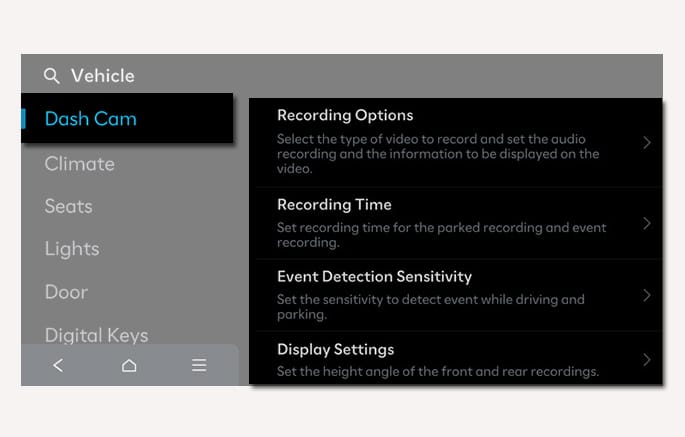
An alternative way to access the Dash Cam settings menu is to select Setup > Vehicle > Dash Cam from the infotainment system screen. You can configure settings for recording and other items related to the Dash Cam operation.
-
Recording Options: You can select whether or not to record while driving or parked and to include sound, and specify driving information to display in recorded video footage.
-
Recording Time: You can set the parking mode recording duration, event recording duration, and time-lapse recording duration and interval.
-
Event Detection Sensitivity: You can set the impact detection sensitivity that activates the recording function.
-
Display Settings: You can set the height of recorded front/rear-view videos.
-
SD Card: You can check or reset information on the memory lifetime or slot location, and disconnect the SD memory.
Dash Cam settings are linked to driver profiles. It is possible to set different recording conditions for each profile.
-
Changing drivers using the digital key or the infotainment system screen automatically changes the Dash Cam settings to fit the corresponding driver profile.
-
All setting items depend on the driver. Saved videos and the Wi-Fi password do not change even if drivers are changed.
-
If a user profile is deleted or profile settings are reset, the Dash Cam settings will also be reset and the recording conditions should be set again.
Basic recording settings
2C_BuiltinCamSettings_2
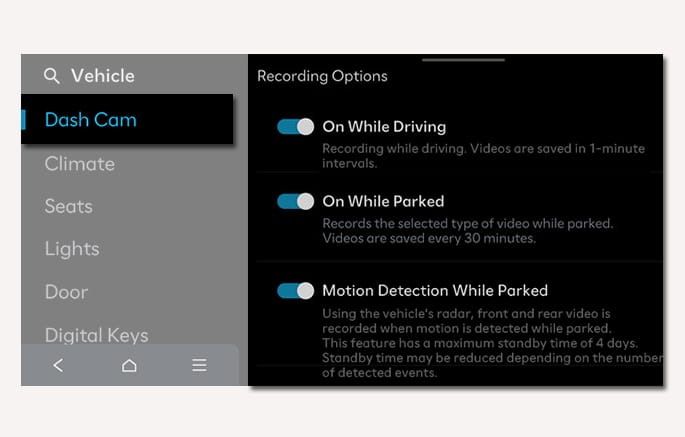
You can select the recording method while driving/parked, and whether or not to record sound. Sound is not recorded during continuous recording while parked or during time-lapse recording.
Select either continuous recording while parked or motion detection recording while parked. It is not possible to select both.
When you complete initial user profile settings by selecting driver 1 or driver 2 profile from the infotainment system screen after the vehicle is delivered, the continuous recording and event recording functions while driving and parked are automatically activated for all profiles, including the guest profile. This works only once after the first initial settings.
If recording settings are configured for the guest profile before configuring profile settings for driver 1 or driver 2, the existing settings are maintained.
Driving Information Display
2C_BuiltInCamRecordingOptions
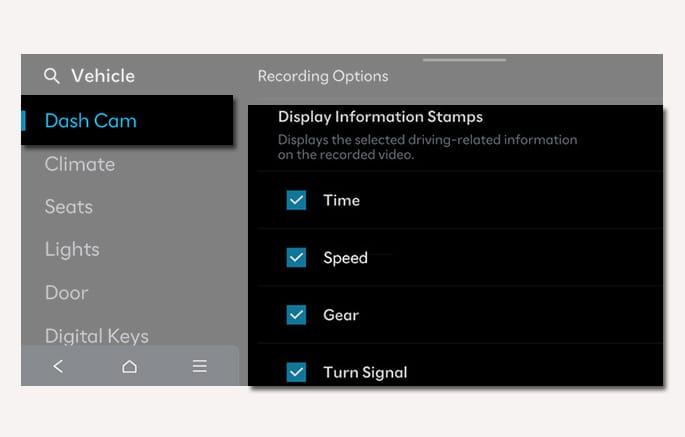
You can record various driving information in the Dash Cam's video, and select the desired items on the Display Information Stamps menu.
-
Time: You can save the date/time displayed on the infotainment system screen.
-
Speed: You can save vehicle speed displayed on the instrument cluster.
-
Gear: You can save the gear position displayed on the instrument cluster.
-
Turn Signal: You can save the operating status of the left and right turn signals.
-
Event Detection Sensitivity: You can save impacts on a scale of five levels detected by the impact sensor on the Dash Cam.
-
Location: You can save the vehicle's GPS position information displayed on the navigation map.
-
The speed displayed on the cluster may be higher than the actual vehicle speed, due to the relevant regulations.
-
GPS position information may not be saved accurately, depending on the vehicle location and satellite signal reception environment.
-
The driving information displayed at the top of recorded video may not match the vehicle's actual driving information due to technical limitations, such as delays in responses between accessories.
-
If recording is complete with the Display Information Stamps option not selected, it is not possible to subsequently display driving information in the recorded video.
2C_BuiltInCamRecordingTime
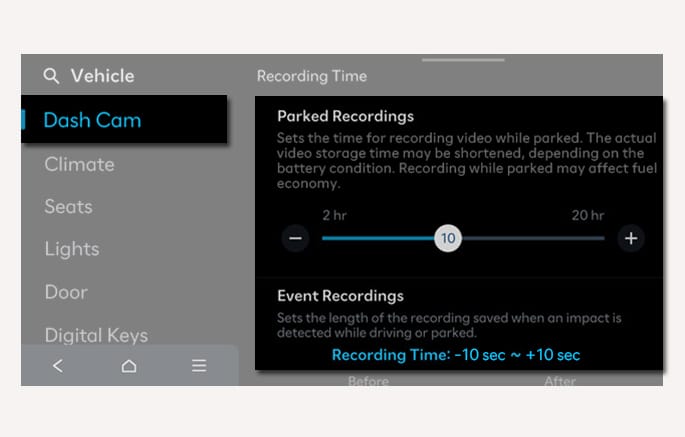
You can select the parking mode recording duration, event recording duration (pre-event time and post-event time), and time-lapse recording duration and interval.
-
Parked Recordings: You can set how long recording is to be maintained after parking. The maximum setting value is 20 hours.
-
Event Recordings: You can set the recording duration in the event of impact detection while driving.
-
Time-lapse Recording Time and Interval: You can set the recording duration and interval during time-lapse recording.
-
If the 12 V lithium auxiliary battery's SoC level is insufficient, recording may terminate before reaching the specified parking mode recording time.
-
The 12 V lithium auxiliary battery is used not only to supply power for the Dash Cam's parking mode recording, but also to supply stable power for the vehicle's controller/navigation wireless updates and assistance with the starter battery. The Dash Cam's recording may terminate before reaching the expected parking mode recording duration, depending on the vehicle condition.
-
There is no time setting for motion detection recording while parked. Motion detection recording works until the 12 V lithium auxiliary battery power is completely consumed. More frequent detection decreases the waiting time.
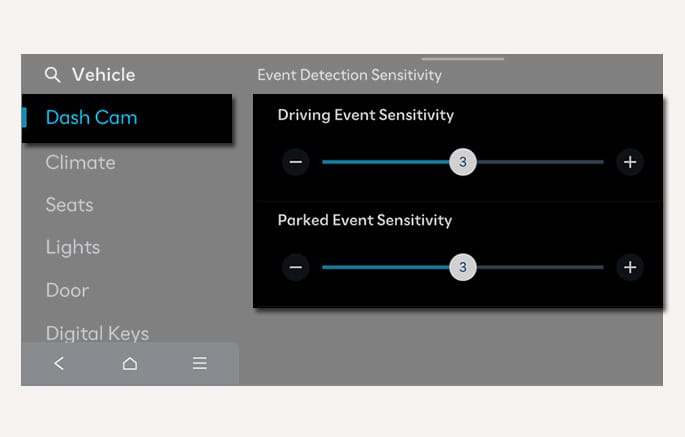
2C_BuiltInCamEventDetectionSensitivity
You can select the Driving Event Sensitivity, which determines whether or not to record events while driving or parked. Select a detection sensitivity from among Step 1 (very dull), Step 2 (dull), Step 3 (average), Step 4 (sensitive) and Step 5 (very sensitive).
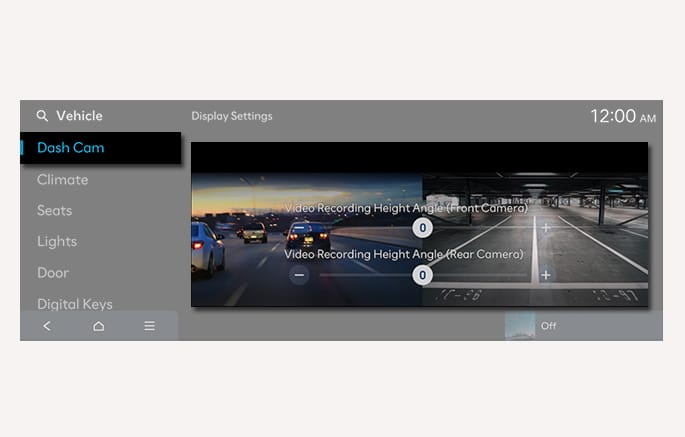
2C_BuiltInCamDisplaySettings
You can adjust the height of recorded front/rear-view videos. Select the preferred height while viewing the video screen.
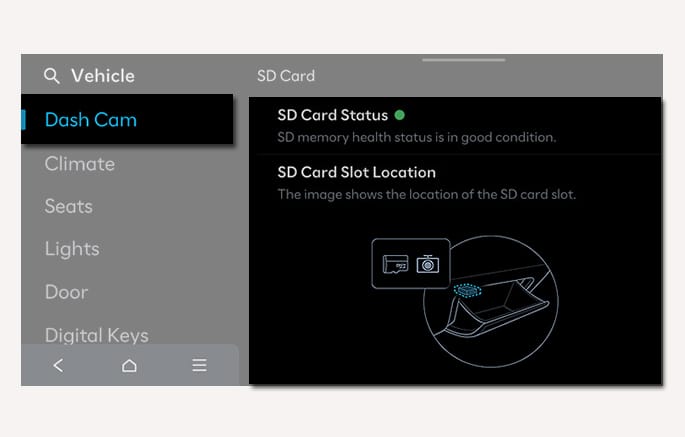
2C_BuiltInCamSDMemory
You can check the lifespan of the SD memory in which recorded videos are saved, and where the SD memory slot is located.
-
SD Card: You can check the lifespan of the memory.
-
SD Card Slot Location: You can check where the memory card slot is located.
-
Disconnect SD Card: You can safely remove the SD memory from the vehicle.
-
Format SD Card: You can delete all recorded videos saved in the SD memory, and reset the memory.
-
The Dash Cam may not work properly if you do not use a genuine SD memory card. Also, information on the SD memory's lifespan may not be completely or accurately displayed.
-
The lifespan state of the SD memory may not be displayed if the SD memory is not genuine.
-
When inserting a new SD memory card, copy important video files and format the memory card before use.
-
Vehicle information may not be displayed properly when the SD memory card is reinserted after being removed.
-
Lock the glove box if you are concerned about personal information being leaked due to theft of the SD memory.