Check the Dash Cam video
2C_BuiltInCamHome
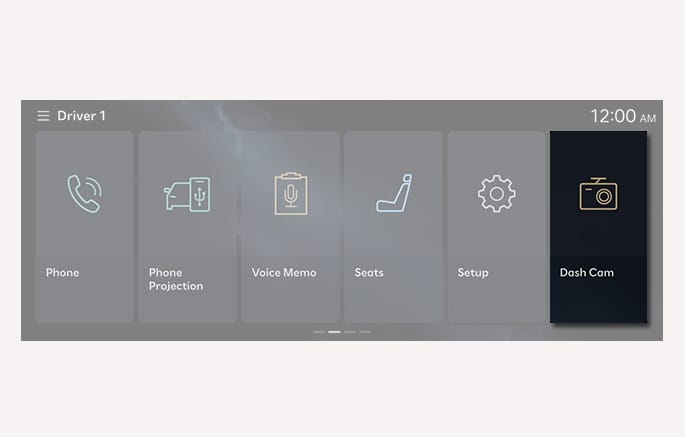
To view recorded Dash Cam footage, select Dash Cam from the infotainment system home screen.
-
Recording feature does not work when the Dash Cam menu is in use.
-
If the Dash Cam menu is selected, it takes some time to stop the recording and display footage files. If connecting to the Dash Cam does not work properly, try again after a while.
-
If your vehicle is driven by someone else, such as during valet parking, and you want to prevent them from viewing saved videos, set the vehicle to valet mode on the navigation screen.
-
To transfer your vehicle to someone else to sell it as a used car or to lease it, delete saved videos to prevent your personal information from being leaked.
2C_BuiltInCamMenu
-
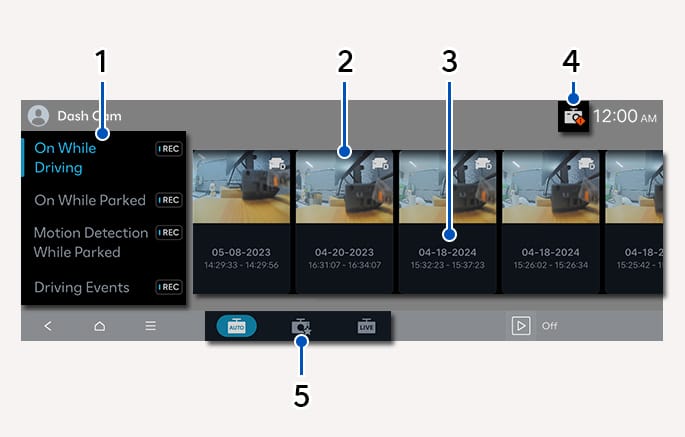
Video footage selection menu items
-
Automatically recorded video footage: On While Driving, On While Parked, Motion Detection While Parked, Driving Events, Parked Events (It is possible to turn on or off recording by using the REC button for each mode.)
-
Manually recorded video footage: Record Manually, Time-lapse, My Videos
-
-
Video footage thumbnails
-
On While Driving: Displays a series of cam footage recorded while driving.
-
On While Parked: Displays a series of cam footage recorded while parked.
-
Motion Detection While Parked: Displays a series of cam footage containing continuous motion detection while parked.
-
-
Date and time of recorded video
-
Dash Cam status indicator: System status, recording status, SD memory status
Status indications
Description
Ļ Light on
System failure
ļ Blinks (at 1 second intervals)
Manual recording or impact-detection event recording is in progress
ļ Blinks (at 2 second intervals)
Time-lapse recording is in progress
Ľ Light on
An SD memory is not inserted or the inserted memory has a failure
-
Available menu items: Automatically Recorded Video Footage, Manually Recorded Video Footage, Real-time Camera View.
2C_BuiltInCamMenu_2
-
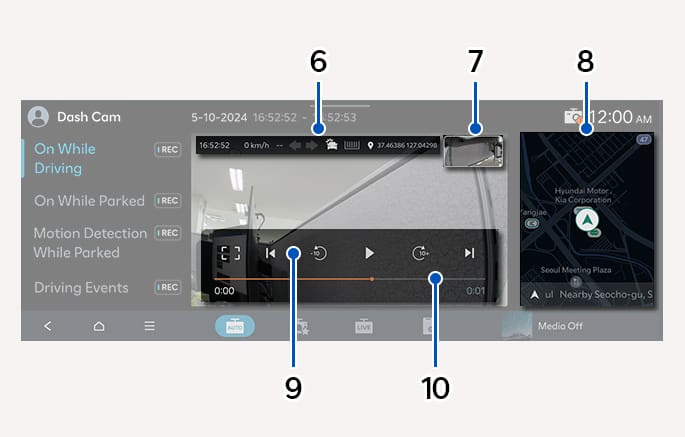
Recorded driving information
-
Time, speed, gear, turn signal, impact detection sensitivity, GPS position
-
-
Selection between the front and rear view footage
-
Location of recording on the map
-
Tap the map to move to a different location
-
-
Full-screen mode activation/deactivation, and playback control
-
Playback bar
-
Check the playback duration and the current playback position
-
Tap to move to a specific position
-