Inside Rearview Mirror
Before driving your vehicle, check to see that your inside rearview mirror is properly positioned. Adjust the rearview mirror so that the view through the rear window is properly centered.
-
Make sure your line of sight is not obstructed. Do not place objects on the rear seat or in the cargo area that may interfere with your vision through the rear window.
-
To prevent serious injury during a collision or deployment of the airbag, do not modify the rearview mirror and do not install a wide mirror.
-
Never adjust the mirror while driving. This may cause loss of vehicle control and result in a collision.
When cleaning the mirror, use a paper towel or similar material dampened with glass cleaner. Do not spray glass cleaner directly on the mirror as this may cause the liquid cleaner to enter the mirror housing.
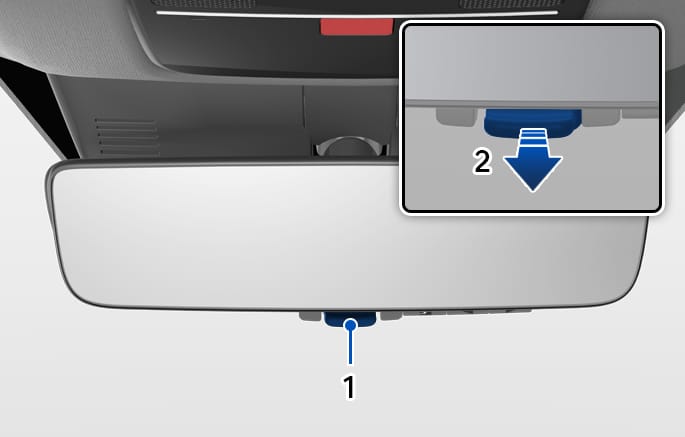
2C_InsideRearViewMirrorDayNight
- Day
- Night
Before driving at night, pull the day/night lever toward you to reduce glare from the headlights of the vehicles behind you.
Remember that you lose some rearview clarity in the night position.
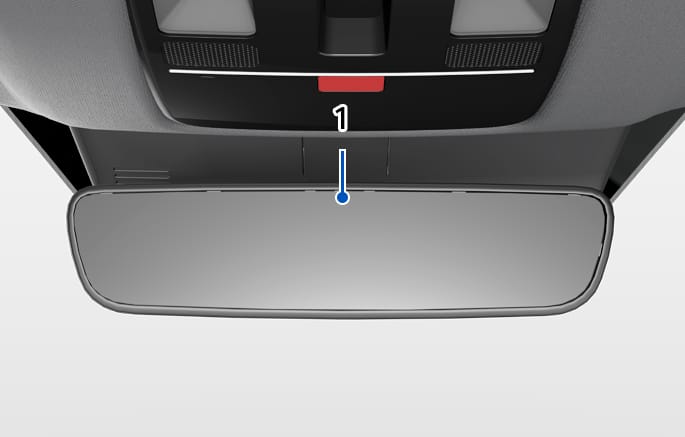
2C_InsideRearViewMirrorECM
- Sensor
When the engine is running, the glare from vehicle headlights behind you is automatically controlled by the sensor mounted in the rearview mirror.
When the gear is shifted to R (Reverse), the mirror automatically goes to the brightest setting to improve the driver's view behind the vehicle.
The Digital Center Mirror is a system that uses the camera on the rear of the vehicle and displays its image on the screen of the Digital Center Mirror. The Digital Center Mirror allows the driver to see the rearview despite obstructions, such as the head restraint or luggage, ensuring rear visibility.
-
Failure to follow the warnings and instructions for proper use of the Digital Center Mirror could result in serious crash.
-
The Digital Center Mirror is a convenience feature but it is not a substitute for proper vehicle operation. The system has areas where objects cannot be viewed. Check the blind spot of the Digital Center Mirror before vehicle operation. The driver is always responsible for safe driving.
-
Do not operate the Digital Center Mirror while driving. Doing so can be a distraction and you could lose control of your vehicle and cause a collision or serious injury.
-
Do not disassemble or modify the Digital Center Mirror, the camera unit or wirings. If you do, it may result in crashes or fire. In case you notice smoke or smell coming from the Digital Center Mirror, stop using the system immediately. Have your vehicle inspected by an authorized HYUNDAI dealer for servicing.
-
-
Be sure to adjust the Digital Center Mirror before driving.
-
Switch the system to the conventional rearview mirror mode and be properly seated on the driver's seat. Then adjust the mirror so as to see the rear window properly.
-
Push the lever all the way to change to digital mirror mode and adjust the display settings. Driving without adjusting the mirror may cause difficulty in watching the display at the Digital Mirror mode (camera view mode) due to the reflection from the surface of the mirror.
-
As the range of the image display by the Digital Center Mirror is different from that of the optical mirror, make sure to check this difference before driving.
-
-
If the Digital Center Mirror malfunction, immediately switch the system to the conventional rearview mirror mode.
-
When strong light (for example, sunlight or high beams from following vehicles) enters the camera, a light beam or a glaring light may appear on the monitor screen of the Digital Center Mirror. In that case, switch the system to the conventional rearview mirror mode appropriately.
-
If the camera lens is dirty, the displayed image may not be clear. In this case, clean it with a soft cloth dampened with water or a swab.
System component
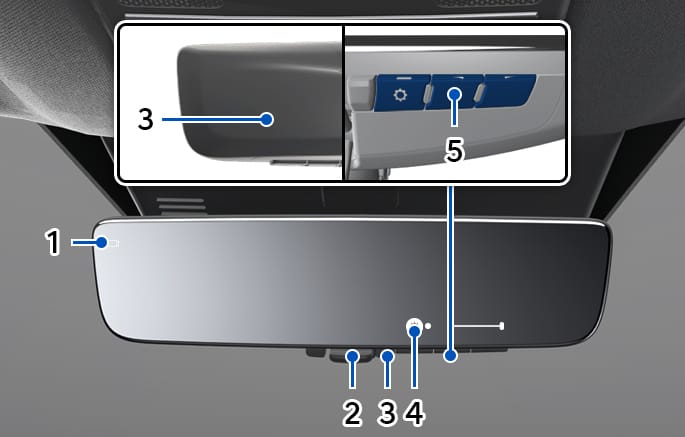
2C_DCMInsidemirrorOverview
- Camera indicator
- Mode selection lever (conventional rear view mirror/digital center mirror)
- Sensor
- Icon display area
- Menu/Adjustment button
How to change the mode
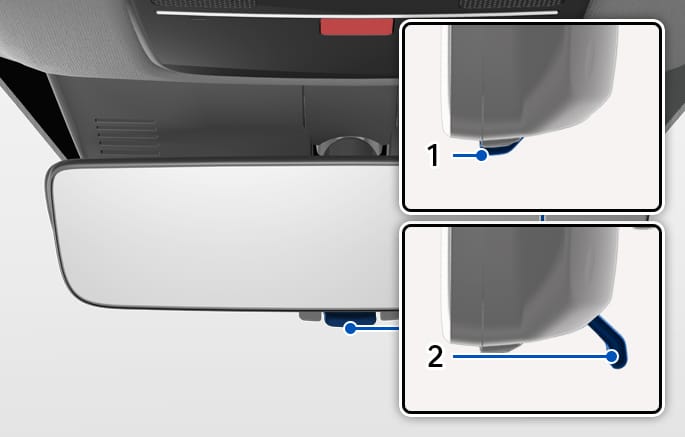
2C_DCMModeChange
- DCM mode
- Conventional rearview mirror mode
The mode can be switched when the switch is in the ON position.
-
Pull the mode select lever all the way to switch to the Digital Center Mirror mode (camera view mode).
-
Displays an image of the area behind the vehicle. In this mode, camera indicator is shown.
-
-
Push the mode select lever all the way to switch to the optical inside rearview mirror mode
-
Turns off the display of the Digital Center Mirror allows it to be used as an optical mirror.
-
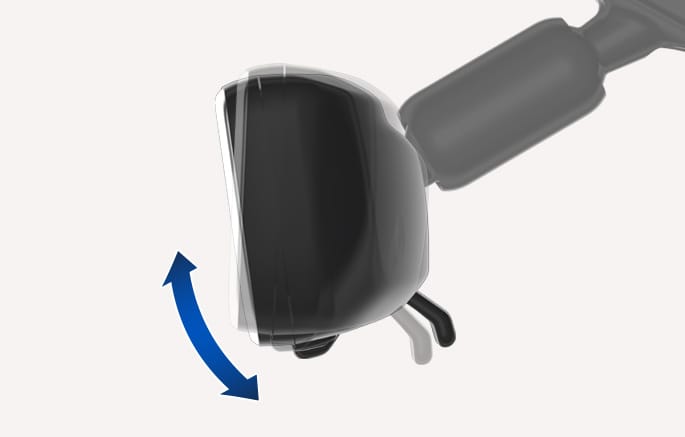
Adjusting the mirror height
2C_DCMModeHeightAdjust
The height of the rearview mirror can be adjusted to suit your driving posture.
Change to optical mirror mode, adjusting the rearview mirror angle by moving it up and down.
2C_DCMInsidemirrorSetting_2
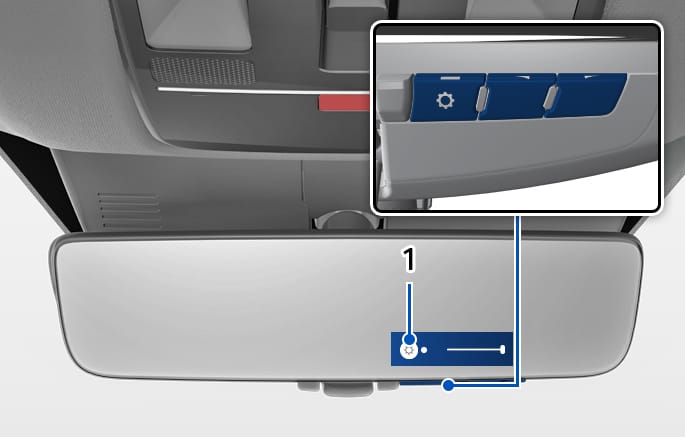
- Icon display area
-
Press the menu button
Ĵ . The icons will be displayed.-
Select
Ń to adjust the brightness of the display. -
Select
ń to adjust the display up/down.
-
-
Press the menu button repeatedly and select the item you want to adjust.
-
Press the adjustment buttons to change the setting.
The icons will disappear if the button is not operated for about 5 seconds or more.
-
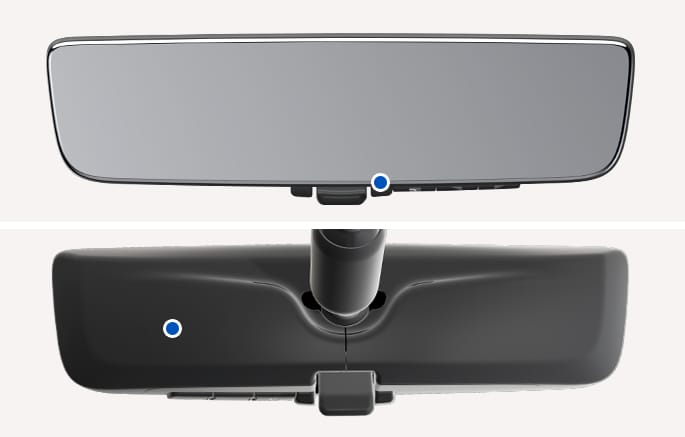
If the brightness of the Digital Center Mirror is set too high, it may cause eye strain. Adjust the Digital Center Mirror to and appropriate brightness. If your eyes become tired, change to optical mirror mode.
2C_DCMCaution
-
To prevent the light sensors from malfunctioning, do not touch or cover them.
Digital mirror mode operating condition
The Engine Start/Stop button is in the ON position.
When the Engine Start/Stop button is changed from ON position to ACC or OFF position, the image will be disappeared.
When using the Digital Center Mirror in digital mirror mode
-
When the liftgate is open, the Digital Center Mirror image may not display properly. Before driving, make sure the liftgate is closed.
-
If the display is difficult to see due to reflected light, close the sunshade for the sunroof (if equipped).
-
Any of the following conditions may occur when driving in the dark, such as at night. None of them indicates that the malfunction has occurred.
-
Colors of objects in the displayed image may differ from their actual color.
-
Depending on your physical condition or age, it may take longer than usual to focus on the displayed image. In this case, change to optical mirror mode.
-
Do not let passengers stare at the displayed image when the vehicle is being driven, as doing so may cause motion sickness.
-
When the system malfunctions
2C_DCMMalfunction
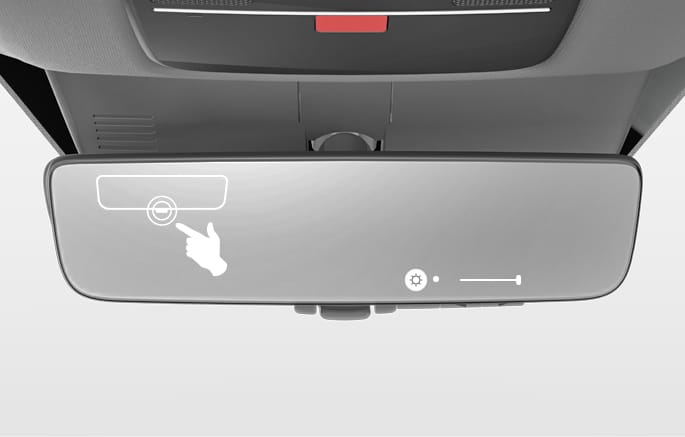
If the symbol shown in the illustration is displayed when using the Digital Center Mirror in digital mirror mode, the system may be malfunctioning. The symbol will disappear in a few seconds.
Operate the lever, change to optical mirror mode and have your vehicle inspected by an authorized HYUNDAI dealer.
To prevent the Digital Center Mirror from malfunctioning
-
Do not use detergents, such as thinner, benzene, and alcohol to clean the mirror. They may discolor, deteriorate or damage the mirror surface.
-
Do not remove, disassemble or modify the mirror and camera.
-
Do not allow an organic solvent, vehicle wax, window cleaner or glass coating to adhere to the camera. If this happens, wipe it off as soon as possible.
-
When cleaning the camera lens, wipe the camera lens with a damp soft cloth.
-
Do not strongly rub the camera lens, as it may be scratched and will not be able to transmit a clear image.
-
Do not subject the camera to a strong impact as this could cause a malfunction. If this happens, have your vehicle inspected by an authorized HYUNDAI dealer as soon as possible.
-
Operating the system at the ON position while the vehicle is not running would cause discharging of the battery.
-
Do not attach an antenna of wireless device near the Digital Center Mirror. Electric wave from wireless device may cause disturbed image in Digital Center Mirror.
-
Do not push buttons excessively or operate the lever roughly may cause a system failure or the Digital Center Mirror itself to drop.
-
Never rotate the body of Digital Center Mirror by 90° or more. It may damage the Digital Center Mirror. Do not apply strong shocks to the body of Digital Center Mirror. It may cause a system failure.
-
If it is difficult to see the Digital Center Mirror display screen because of a strong external light or foreign substances on the lens surface, switch the mode to the conventional rearview mirror mode.
Digital Center Mirror error icon and solution
|
Symptom |
Likely cause |
Solution |
|
If the high temp icon is displayed on the display's right side.
|
The Digital Center Mirror is extremely hot. (The display will gradually become more dim. If the temperature continues to increase, the Digital Center Mirror will turn off.) |
|
|
If the display icon has been switched to which is the display error icon.
|
The system may be malfunctioning |
Change to optical mirror mode and have your vehicle inspected by an authorized HYUNDAI dealer. |
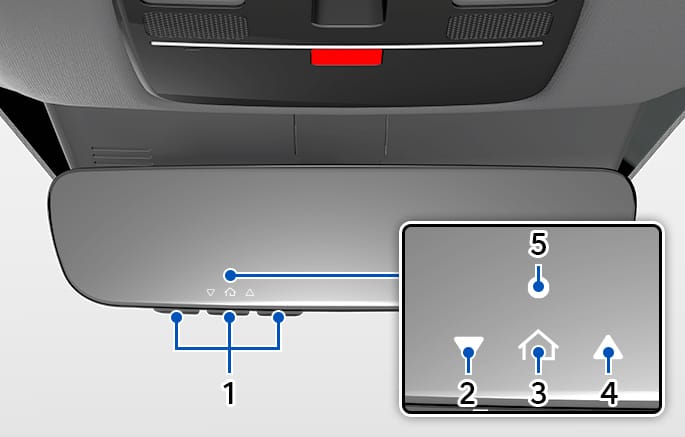
2C_ECMHomelink
- HomeLink Channel
- Garage Door Opener Status Indicator: Closing or Closed
- HomeLink Operation Indicator
- Garage Door Opener Status Indicator: Opening or Opened
- HomeLink User Interface Indicator
Your vehicle may be equipped with a Gentex Automatic-Dimming Mirror with an Integrated HomeLink® Wireless Control System.
During nighttime driving, this feature will automatically detect and reduce rearview mirror glare. The HomeLink® Universal Transceiver allows you to activate your garage door(s), electric gate, home lighting, etc.
Automatic-Dimming Night Vision Safety™ (NVS®) Mirror
The NVS® Mirror automatically reduces glare by monitoring light levels in the front and the rear of the vehicle. Any object that obstructs either light sensor will degrade the automatic dimming control feature.
Your mirror will automatically dim upon detecting glare from the vehicles traveling behind you.
The mirror defaults to the ON position each time the vehicle is started.
For more information regarding NVS® mirrors and other applications, please refer to the Gentex website: www.gentex.com.
Integrated HomeLink® Wireless Control System
The HomeLink® Wireless Control System provides a convenient way to replace up to three hand-held radio-frequency transmitters used to activate compatible devices such as gate operators, garage door openers, entry door locks, security systems, and home lighting.
Before programming HomeLink® to a garage door opener or gate operator, make sure people and objects are out of the way of the device to prevent potential harm or damage. Do not use the HomeLink® with any garage door opener that lacks the safety stop and reverse features required by U.S. federal safety standards (this includes any garage door opener model manufactured before April 1, 1982). A garage door that cannot detect an object-signaling the door to stop and reverse-does not meet current U.S. federal safety standards. Using a garage door opener without these features increases the risk of serious injury or death.
For more information, contact HomeLink® at www.homelink.com, or call Home-Link customer support at 1-800-355-3515.
It is also recommended that a new battery be replaced in the hand-held transmitter of the device being trained to HomeLink® for quicker training and accurate transmission of the radio frequency.
HomeLink® operates while the Engine Start/Stop button is in the ACC or ON position for safety reasons. It is to prevent unintentional security problems from happening when the vehicle is parked outside the garage.
Programming HomeLink®
The following steps show how to program HomeLink. If you have any questions or are having difficulty programming your HomeLink buttons, refer to the HomeLink website or call the HomeLink customer support toll-free number.
-
If you choose to access the website via your cell phone, scan the QR code.

2C_ECMHomelinkQR
Programming a New HomeLink®
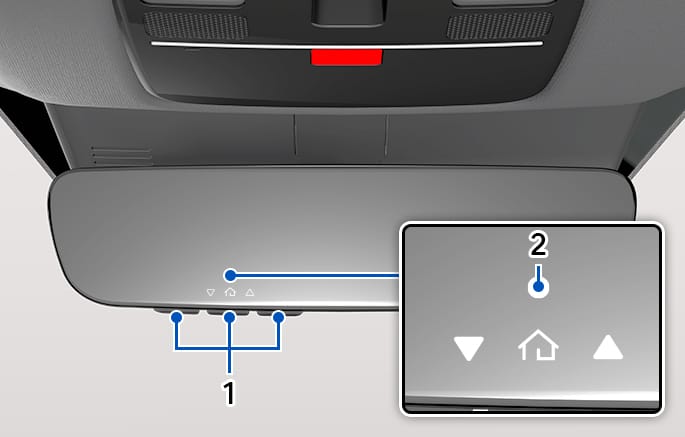
2C_ECMHomelink_2
- HomeLink button
- HomeLink indicator light
-
When programming a garage door opener, park the vehicle outside of the garage and press the Engine Start/Stop button to the ACC position.
It is recommended that a new battery be placed in the hand-held transmitter of the device being programmed to HomeLink for quicker training and accurate transmission of the radio-frequency signal.
-
Press and release the HomeLink button you would like to program. The HomeLink indicator light will flash orange slowly.
-
If not, perform the steps of 'Erasing HomeLink Buttons' section and start over.
-
-
Position the garage door opener remote 1-3 in. (2-8 cm) away from the HomeLink buttons.
While the HomeLink indicator light is flashing orange, press and hold the handheld remote button. Continue pressing the handheld remote button until the HomeLink indicator light changes from orange to green and release the handheld remote button.If you live in Canada or you are having difficulties programming a gate operator or garage door opener by using the programming procedures, while the HomeLink indicator light is flashing orange, press and release your device's handheld remote every two seconds until the HomeLink indicator light changes from orange to green.
-
Wait until your garage door comes to a complete stop, regardless of position, press and release the HomeLink button you are programming, and then observe the indicator light.
-
If the indicator light remains solid green, your device should operate when the HomeLink button is pressed. At this point, if your device operates, programming is complete.
-
If the indicator light rapidly flashes green, firmly press, hold for two seconds and release the HomeLink button up to three times in a row slowly to complete the programming process. Do not press the HomeLink button rapidly. At this point if your device operates, programming is complete.
-
If the device does not operate:
-
At the garage door opener motor, (security gate motor, etc.) firmly press and release the 'Learn', 'Smart', 'Set' or 'Program' button. You now have up to 30 seconds to complete the next step.
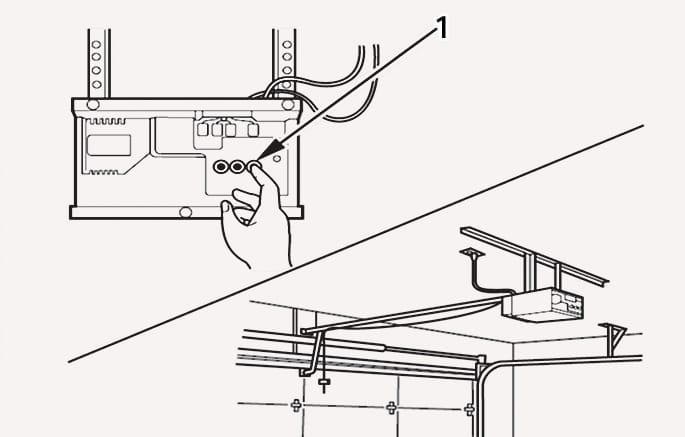
2C_ECMHomelink_5
- Learn button
-
The button can usually be found where the hanging antenna wire is attached to the motor-head unit (refer to the device's manual to locate the button). The name and color of the button may vary by manufacturer.
-
A ladder and/or second person may simplify the following steps.
-
Return to the vehicle and firmly press, hold for two seconds and release, the HomeLink button up to three times in a row slowly. Do not press the HomeLink button rapidly. As soon as you see the garage door start to move, stop pressing any buttons until a few seconds after the garage door has come to a complete stop, regardless of position. At this point, programming is complete and your device should operate when the HomeLink button is pressed and released.
Two-Way Communication Programming (for garage door openers)
If your garage door opener has the myQ logo on its side, your opener likely has Two-Way Communication capability. HomeLink can receive and display 'closing' or 'opening' status messages from compatible garage door openers. At any time, HomeLink can also recall and display the last recorded status communicated by the garage door opener.
To check if your garage door opener is compatible with this feature, refer to www.homelink.com/compatible/Two-way-Communication. If your garage door opener has this functionality, AND the Two-Way Communication indicators in the mirror appear while the garage door is opening/closing, then no further steps are needed. However, if the Two-Way Communication indicators in the mirror DO NOT appear while the garage door is opening/closing, use the following instructions to enable this functionality.
-
In your vehicle, press and hold the programmed HomeLink button for 2 seconds, then release. AFTER the garage door stops, you will have one minute to complete the next steps.
A ladder and/or second person may simplify the following steps.
-
On your garage door opener in your garage, press and release the 'Learn' button (usually near where the hanging antenna wire is attached to the garage door opener). A light on your garage door opener may flash, and your Two-Way Communication indicators in your vehicle may flash, confirming completion of the process.
If there is difficulty locating the button, refer to the owner's manual for your device.
-
Return to the vehicle and firmly press and release the programmed HomeLink button to activate your garage door. The Two-Way Communication indicators flash in orange when the door is moving. Do not make any additional button presses until AFTER the garage door has come to a complete stop.
If your garage door opener has Two-Way Communication functionality, it is possible for HomeLink to stop functioning the garage door shortly after initial programming, if the Two-Way Communication Programming wasn't properly completed. This usually happens after the first 10 times a programmed HomeLink button is pressed. If you experience this, completing the 'Programming a New HomeLink Button' and 'Two-Way Communication Programming' will restore door operation.
Canadian Programming
Canadian radio-frequency laws require transmitter remote signals to 'time-out' (or quit) after a couple seconds of transmission, which may not be long enough for HomeLink to pick up the signal during programming.
Operating HomeLink®
2C_ECMHomelink_2
- HomeLink button
- HomeLink indicator light
Press and release the desired programmed HomeLink button.
The HomeLink indicator should light green, solid or flashing, and your programmed device should operate. If your device does not operate, the HomeLink programming was not successful, and you'll need to reprogram the button.
Two-Way Communication Display Behavior
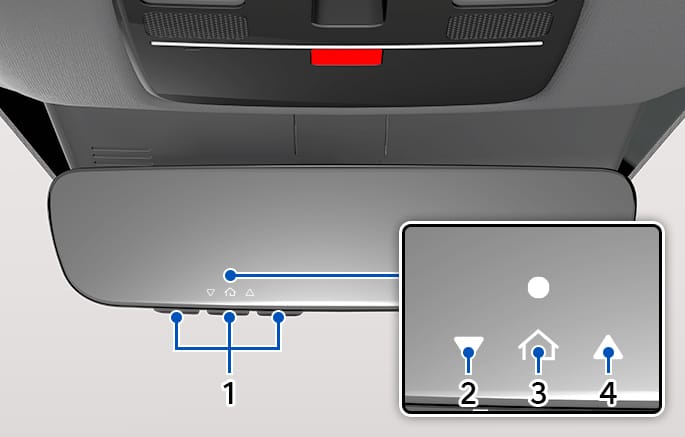
2C_ECMHomelink_7
- HomeLink button
- Garage Door Opener Status Indicator: Closing or Closed
- HomeLink indicator light
- Garage Door Opener Status Indicator: Opening or Opened
-
Press and release one of the programmed HomeLink buttons.
-
The Garage Door Opener Status Indicators operate as below, if your garage door opener has Two-Way Communication functionality.
-
If the indicator (Closing or Closed) flashes in Orange, it indicates that the garage door is 'Closing'.
-
The indicator (Closing or Closed) turns solid green once the garage door has closed.
-
If the indicator (Opening or Opened) flashes in Orange, it indicates that the garage door is 'Opening'.
-
The indicator (Opening or Opened) turns solid green once the garage door has fully opened.
-
If the indicators do not turn to green, it indicates that the last status of garage door was not received properly. The HomeLink mirror tries to receive the last known status of the garage door for a few seconds.
-
Recalling Garage Door Status
HomeLink mirror with Two-Way Communication provides a way to view the last stored message from the garage door opener. In order to recall the last known status of the last activated device, press the first and second buttons, or the second and third buttons.
-
If the indicator (Closing or Closed) appears solid Green, it indicates that the last activated device was 'closed' properly.
-
If the indicator (Opening or Opened) appears solid Green, it indicates that the last activated device was 'open' properly.
Erasing HomeLink® Buttons
Erasing and Reprogramming a Single HomeLink® Button:
-
Press and hold the desired HomeLink button you want to re-program. DO NOT release the button.
-
The HomeLink indicator light will illuminate solid green. Release the button as soon as the HomeLink indicator light begins to flash orange, usually about 20 seconds.
-
Proceed with the steps in the 'Programming a New HomeLink®' section.
If you do not complete the re-programming of a new device to the button, it will revert to the previously stored programming.
Erasing ALL HomeLink® programming from ALL buttons:
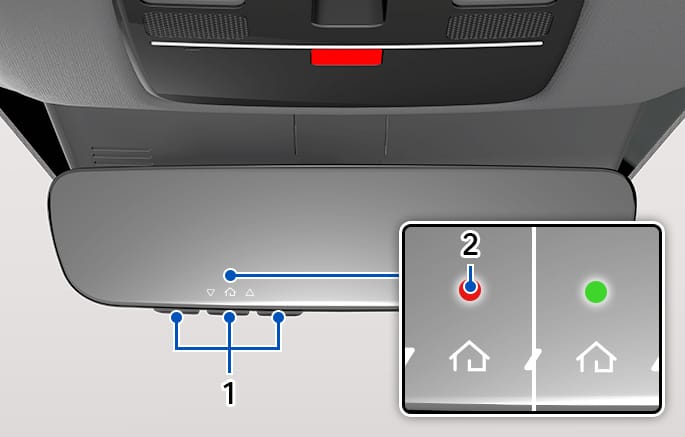
2C_ECMHomelinkDelete
- HomeLink button
- HomeLink indicator light
-
Press and hold the first and third buttons simultaneously. The HomeLink indicator light will illuminate solid Orange for about 10 seconds.
-
Release the buttons once the HomeLink indicator light changes to Green and flashes rapidly.
Now all three HomeLink buttons are cleared of any programming.
HomeLink® and the HomeLink® House logo are registered trademarks of Gentex Corporation.
The myQ logo is a registered trademark of The Chamberlain Group, Inc.
FCC (USA) and ISED (Canada)
This device complies with FCC rules part 15 and Innovation, Science, and Economic Development Canada RSS-210. Operation is subject to the following two conditions: (1) This device may not cause harmful interference, and (2) This device must accept any interference that may be received including interference that may cause undesired operation. WARNING: The transmitter has been tested and complies with FCC and ISED rules. Changes or modifications not expressly approved by the party responsible for compliance could void the user's authority to operate the device.
This equipment complies with FCC and ISED radiation exposure limits set forth for an uncontrolled environment. End Users must follow the specific operating instructions for satisfying RF exposure compliance. This transmitter must be at least 20cm from the user and must not be co-located or operating in conjunction with any other antenna or transmitter.
FCC (Htats-Unis) et ISED (Canada)
Cet appareil est conforme aux reglements de la FCC, section 15, et au CNR-210 d'Innovation, Sciences et Dhveloppement economique Canada. Le fonctionnement est assujetti aux deux conditions suivantes: (1) cet appareil ne doit pas causer d'interferences nuisibles et (2) cet appareil doit accepter toute interference recue, y compris celle qui pourrait entrainer un dysfonctionnement. MISE EN GARDE: L'emetteur a subi des tests et est conforme aux reglements de la FCC et d'ISDE. Les changements ou modifications non approuves explicitement par la partie responsable de la conformite pourraient rendre caduque l'autorisation de l'utilisateur de se servir du dispositif.
Cet appareil est conforme aux limites d'exposition aux radiations de la FCC et d'ISDE etablies pour un environnement non controle. Les utilisateurs finaux doivent respecter les instructions d'utilisation specifiques pour satisfaire aux exigences de conformite aux expositions de RF. L'emetteur doit se trouver a 20 cm au minimum de l'utilisateur et ne doit pas etre situe au meme endroit que tout autre emetteur ou antenne ni fonctionner avec un autre emetteur ou antenne.
Mejico
La operacion de este equipo esta sujeta a las siguientes dos condiciones: (1) es posible que este equipo o dispositivo pueda no causar interferencia danina, y (2) este dispositivo o dispositivos deben aceptar cualquier interferencia, que incluye la interferencia que puede causar su operacion no deseada.
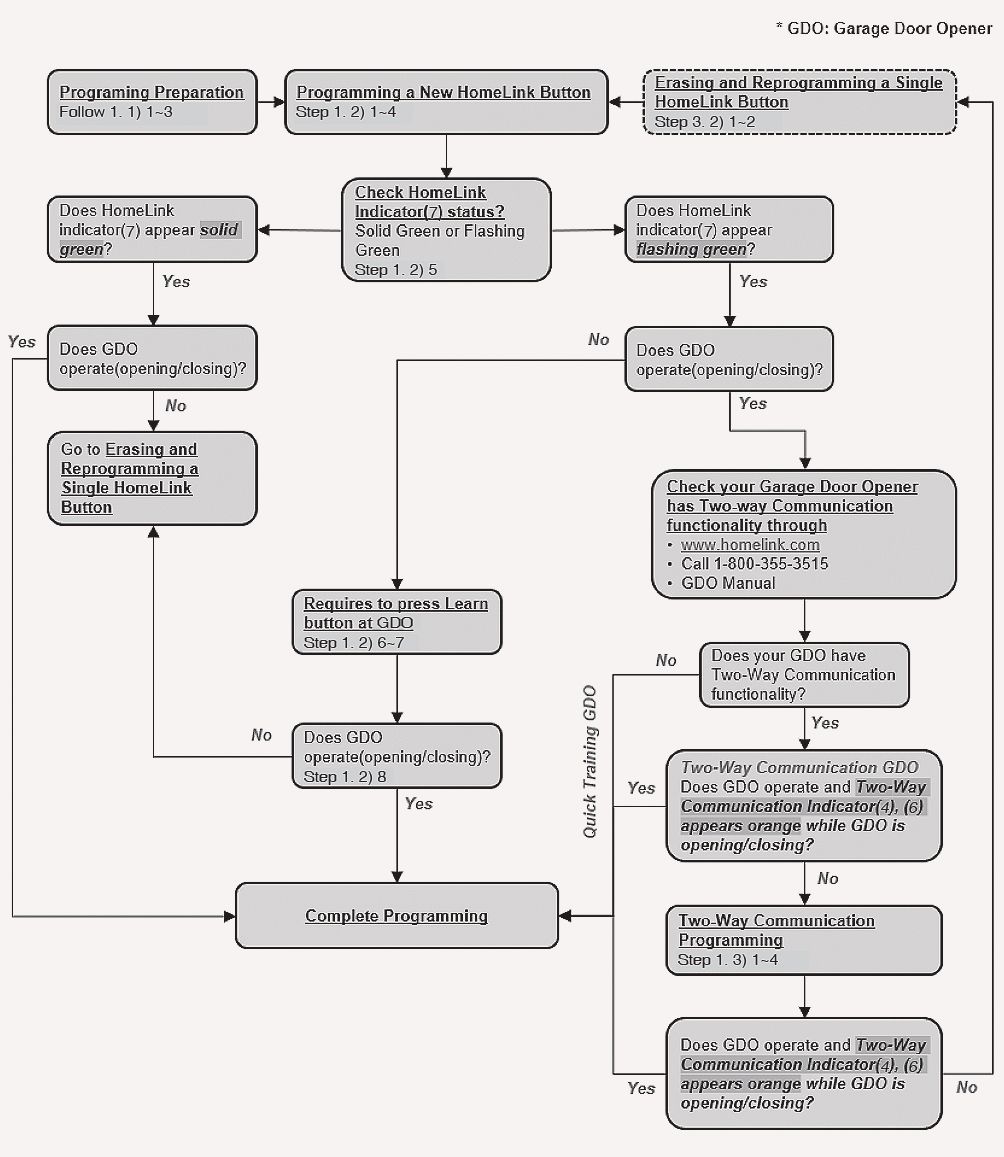
HomeLink 5 Programming Flow Chart
1C_ECMHomelinkFlowChart