Recording Manually
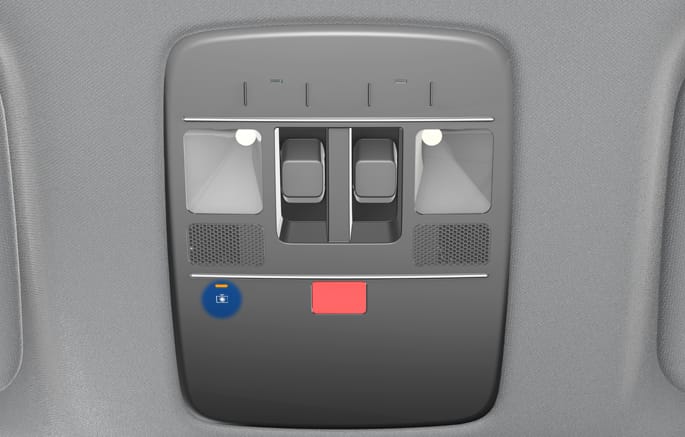
2C_BuiltInCamButton
You can record video footage of the surroundings at any desired point in time, using the manual recording button on the Dash Cam.
If you press the manual recording button when the vehicle is driving or the ignition is in the ACC or ON state, recording starts regardless of Dash Cam recording settings. Manual recording is terminated if you turn off the ignition or select the Dash Cam menu.
-
Event Recordings: Press the manual recording button briefly.
-
Time-lapse Recordings: Press and hold the manual recording button to start time-lapse recording. To terminate the recording, press and hold the same button again.
The 'Time-lapse' feature records video at regular intervals, compresses it, and then plays back the changes over a long period of time at high speeds.
You can check the Dash Cam operation status, using the manual recording button on the cam or the status indicators on the front- and rear-view cameras.
Dash Cam’s manual recording button status indicator
|
Dash Cam status indicator |
Description |
|
Light off |
Continuous/event recording while driving/parked is not enabled |
|
Blinks (at 2 second intervals) |
Continuous/event recording while driving/parked is enabled |
|
Blinks (at 1 second intervals) |
Impact-detection event recording is in progress |
|
Blinks (at 1 second intervals) |
Manual recording is in progress |
|
Blinks (at 2 second intervals) |
Time-lapse recording is in progress |
Built-in cam status indicator
|
Status indicator |
Description |
|
Light off |
Continuous/event recording while driving/parked is not enabled |
|
Blinks (at 2 second intervals) |
Continuous/event recording while driving/parked is enabled |
|
Blinks (at 1 second intervals) |
Impact-detection event recording is in progress |
|
Blinks (at 1 second intervals) |
Manual recording is in progress |
|
Blinks (at 1 second intervals) |
Motion detection recording while parking is in progress |
|
Blinks (at 2 second intervals) |
Time-lapse recording is in progress |