Digital Key (Card key)
The availability of card keys differs by country.
-
Have both of your smart keys with you in the vehicle.
-
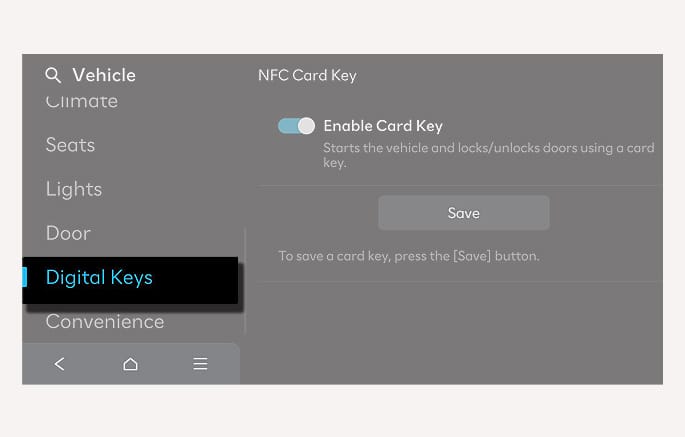
Select Setup > Vehicle > Digital Keys > NFC Card Key, and check whether Enable Card Key is selected in the infotainment system.
2C_AVNRegisterCardKey
-
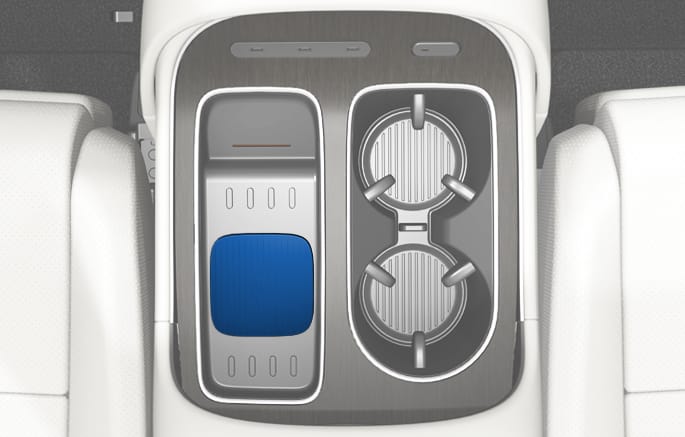
Place your card key on the vehicle authentication pad (wireless charging pad) while the engine is on.
2C_WirelessChargingPad
-
Register your card key by selecting Vehicle > Digital Keys > NFC Card Key > Save from the Settings menu in the infotainment system.
-
Only one digital key (card key) can be registered to the vehicle. If it must be replaced, delete the existing card key before registering the new card key.
-
To register a digital key (card key), both of your smart keys must be in the vehicle.
-
Once a digital key (card key) is registered, it cannot be registered in another vehicle. It is possible to re-register it to the original vehicle.
-
Locking/Unlocking the doors
If the driver places the digital key (card key) to the driver's or passenger's door handle authentication pad for more than 2 seconds, the door locks or unlocks.
If the 2-Press Unlock feature is set, only the driver's door unlocks when the digital key (card key) is placed on the driver's door handle authentication pad. Hold the digital key (card key) near the driver's door handle authentication pad once more within 4 seconds to unlock all doors.
After unlocking the doors, the doors are automatically re-locked after 30 seconds unless a door is opened.
You cannot lock your vehicle using the digital key (card key) if any of the following occurs:
-
The smart key is in the vehicle.
-
The Engine Start/Stop button is in the ACC or ON position.
-
Any of the doors, hood, or liftgate are open.
Starting the vehicle
After placing your registered digital key (card key) on the vehicle authentication pad (wireless charging pad), depress the brake pedal and press the Engine Start/Stop button. For more information on the basic way to start the vehicle, refer to Engine Start/Stop Button.
-
The digital key (card key) may not work under the following conditions:
-
The digital key (card key) is not placed on the door handle authentication pad or vehicle authentication pad (wireless charging pad) correctly.
-
The digital key (card key) is near NFC-enabled cards such as credit cards or smartphones.
If the digital key (card key) does not work, try again after moving the digital key (card key) away from the door handle authentication pad (more than 4 in. (0.1 m)).
-
-
The digital key (card key) can be damaged by impacts. If the digital key (card key) is damaged, replace the digital key (card key) with a new one and register it again.
-
Long-time exposure to high temperature may cause the digital key (card key) to malfunction. Be careful not to expose the digital key (card key) to direct sunlight or high temperature.
-
Leaving the digital key (card key) on the in-vehicle authentication pad (wireless charging pad) while driving may cause the digital key (card key) to malfunction. Remove the digital key (card key) from the in-vehicle authentication pad (wireless charging pad) after starting the vehicle.
-
Keep the digital key (card key) away from the smartphone when charging the smartphone. If the digital key (card key) is placed between the smartphone and the in-vehicle authentication pad (wireless charging pad) while the smartphone is being charged, the digital key (card key) may malfunction. For example, when charging smartphone while the digital key (card key) is attached to the back of the smartphone case.
-
Turn on the engine with a smart key. Have your smart key with you in the vehicle.
-
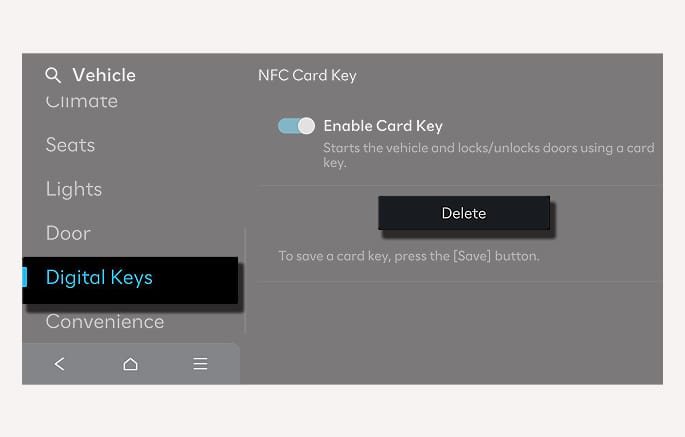
Select Setup > Vehicle > Digital Keys > NFC Card Key > Delete from the infotainment system.
2C_AVNDeleteCardKey