Hyundai Digital Key
To use Hyundai Digital Key mobile app, you should install Hyundai digital key application. Search ‘Hyundai digital key’ in the Google Play Store and download the app. Please refer to the detailed manual of the digital key app. The option can be found under the following app menu:
Menu > Application Info > Tutorial
Please note the manual before using the app.
* This service is only available for Android smartphones. Please confirm supported/compatible devices on our website.
For used vehicle
If any of the digital key (smartphone key or card key) is already registered when you press ON button after unlocking the doors, the message ‘Digital key(s) active’ appears on the cluster display once. If you buy a used vehicle, you should confirm the message and delete the registered smartphone key and card key. In addition, please notify the Hyundai Customer Care Center.
If the card key does not work properly, please delete the card key and register the smartphone key and re-register the card key.
For vehicle maintenance
If you need to have your Digital Key System repaired or replaced please ensure your Smartphone Key is still active. You may have to pair your phone again.
In the case, re-initialize your Digital Keys using the Hyundai Digital Key mobile app.
You can use the Digital Key NFC (Near Field Communication) function after turn your smartphone NFC settings on. And you should unlock & turn on smartphone screen to use it.
* To change the NFC mode of the smartphone, please refer to the smartphone manual or contact to the customer service center of smartphone manufacturers.
Hyundai Digital Key (Smartphone) Pairing
-
Turn the vehicle on with the Smart key and make sure to keep the smart key inside the vehicle during digital key registration.
ONE1051272N
-
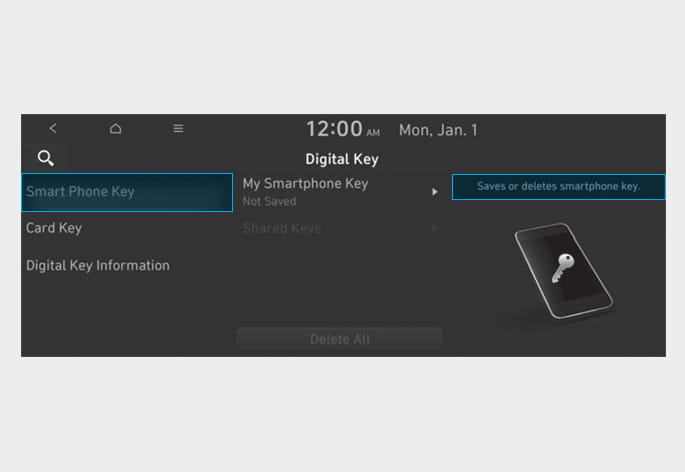
Register your Digital key from the vehicle user setting menu as follows. From the infotainment screen menu, go to Setup > Vehicle > Digital Key > Smart Phone Key then select the Save from submenu.
The Save button will be disabled if the digital key (Smartphone key) is already saved.
Please refer to “Digital Key Delete” in this manual and follow the digital key delete procedure in your car before Digital key save.
Please refer to the ‘Tutorial’ on your Digital key app and delete the previous saved key in your smartphone before save.
-
Select the vehicle to save on your Digital key application and activate the save mode.
* Save mode is available only on the vehicle owner’s Digital key application.
-
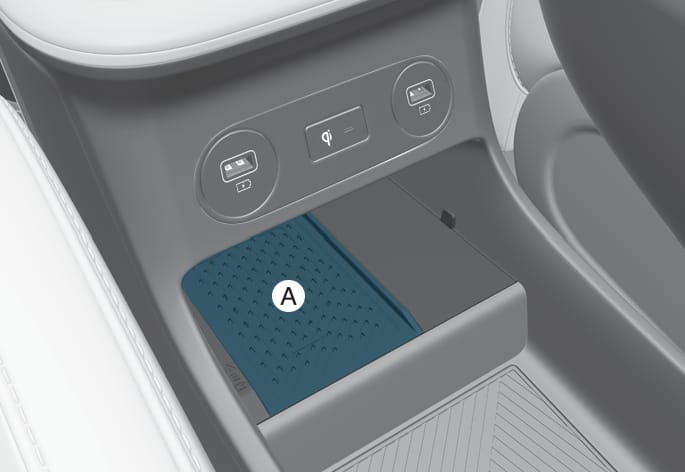
Place the backside of smartphone onto the wireless charging pad(in-vehicle authentication pad). The saving process will begin automatically.
-
Once the digital key save is complete, a message will be shown on the infotainment screen or cluster display.
-
Remove the smartphone from the pad and complete the saving process.
ONE1051005
- : Wireless Charging Pad (In-vehicle Authentication Pad)
Hyundai Digital Key (Smartphone Key) Deletion
-
Turn the vehicle on with the Smart key and make sure to keep the smart key inside the vehicle during delete process.
ONE1051272N
-
Delete your Digital key from the vehicle user setting menu as follows.From the infotainment screen menu, go to Setup > Vehicle > Digital Key > Smart Phone Key then select the Delete from submenu.
The Delete button will be disabled if there is no digital key (Smartphone key) saved.
-
Once the digital key delete is complete, a message will be shown on the infotainment screen or cluster display.
-
Go to Initialize Digital Key menu on the digital key application and select the vehicle to delete the digital key information.
-
Open the Hyundai Digital Key app > Menu > Initialize Digital Key
* If the saved digital key information in your car is deleted due to vehicle maintenance, the digital key in your smartphone should be deleted as well.
* For more information, please refer to the ‘Tutorial’ on your Digital key app.
-
If the smartphone is removed from the interior authentication pad during enrollment, the saving process will be canceled.
-
If the infotainment or instrument cluster screen is changed during enrollment, the saving process will be canceled.
-
If the vehicle is turned off during enrollment, the saving process will be canceled.
-
If the gear is shifted, the saving process will be canceled.
-
If you try to save the smartphone which is not logged in with the vehicle owner’s ID or if you try to save the Card key, the saving process will not begin.
-
If the NFC setting on your smartphone is off, the saving process will not begin.
-
If the smartphone screen is changed to off or locked status, the saving process will be canceled.
-
If there is no Smart key during the save process, the saving process will not begin.
Set up main vehicle
You can manage multiple digital keys from the Digital key app. From the list of digital keys you own, select the vehicle you want to make your priority vehicle.
For more information, please refer to the ‘Tutorial’ on your Digital key app.
NFC door lock/unlock
ONE1051006
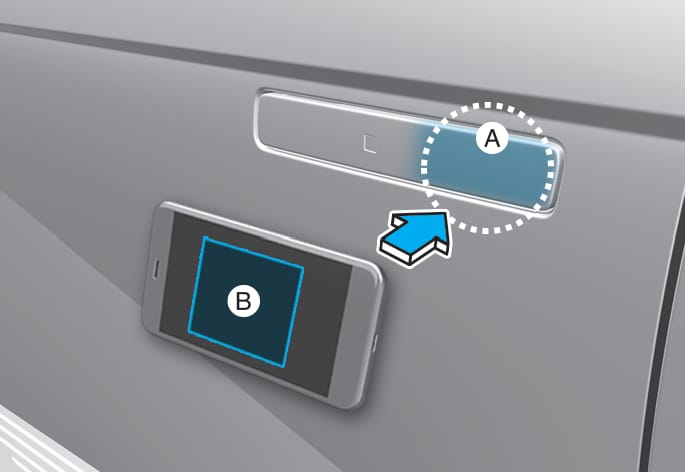
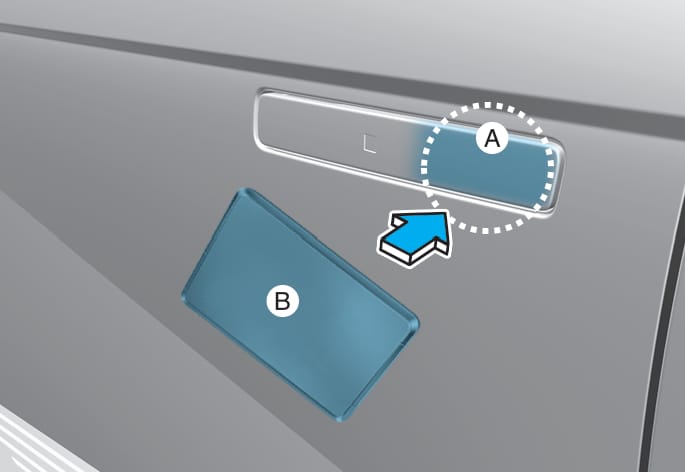
- : Door handle authentication pad
- : NFC Antenna in the rear side of smart phone
You should contact your smartphone’s NFC antenna(backside of phone) to door handle authentication pad (A) marked position near by the lock button) of driver’s (or front passenger’s) outside door for 2 seconds to lock or unlock the doors. If the Two Press Unlock feature is applied (press twice for unlocking), driver’s seat door will be unlocked by contacting the digital key (smartphone key). In this state, if you contact one more time within 4 seconds, all the doors unlock. Please make sure the doors are locked. If you do not open any of the doors after unlocking, it automatically re-lock after 30 seconds.
Note that you cannot lock your vehicle when you contact NFC antenna in the smartphone to the door handle pad if any of the following occurs:
-
The Proximity / Smart Key is in the vehicle.
-
The Start/Stop button is in ACC or ON position.
-
Any of the doors, hood and liftgate is opened.
If the smartphone digital key does not work, please remove the smartphone more than 4 inches (0.1 m) from the door handle authentication pad and try it again.
After unlock the door or start up the vehicle with digital key, even though the driver tries to lock the doors by the central door lock switch, the door lock will be once locked and immediately released at the moment of door closed.
Start-up with Digital Key
-
After placing your registered smartphone onto the interior authentication pad (wireless charger), step on the brake and press the Start/Stop button.
-
After start-up, the digital key data will be automatically updated. It takes 5 to 20 seconds, after that, the smartphone can be go into the wireless charging mode automatically. Once the vehicle started, you can remove the smartphone from the pad.
ONE1051005
- : Wireless Charging Pad (In-vehicle Authentication Pad)
After reconnecting the vehicle battery power supply or charging the battery, it may take time to operate due to remote renewal of security information. When you lock or unlock the door with NFC, please contact and hold your smartphone on the door handle until it works.
The solution allows for offline mode usage when the mobile data connection of the smartphone is weak. When you are in the place where the mobile data connection of your smartphone is available and place your smartphone on the interior authentication pad (wireless charger) and start up your vehicle or contact the digital key on the door handle to lock or unlock the door, the remote renewal of security information starts automatically. Even though the motor is turned on, please wait until the remote renewal process is completed and wireless charger is converted to charging mode.
The motor can be turned on if the registered smartphone or card key is placed on the interior authentication pad (wireless charger). Do not leave unsupervised children or people who are not aware of the system since it can result in serious injury or death. Always have the registered digital key (smartphone) or card key with you to prevent vehicle theft when leaving the vehicle.
For more information, refer to the "Start/Stop button" in chapter 6.
Remote Control with Digital Key
To use the remote control function with your android smartphone, Bluetooth must be turned on.
Remote Control Connection with Digital Key
-
Open Hyundai digital key application on the smartphone. Select the vehicle to activate the remote control function as a main vehicle.
-
Approach with the activated smartphone app to your vehicle and you can check whether the connection is available. If it enables your smartphone to connect, connect with your vehicle by pressing the connect button. The remote control function is activated after completing the process.
Remote Control Operation with Digital Key
You can execute the remote control operation including door lock/unlock, panic on/off, remote start / remote stop and liftgate opening. The icon for each function will be highlighted and alarm/vibration also provided when the operation is performed.
Note that you cannot lock your vehicle using the Hyundai digital key app if any of the following occurs:
-
The Start/Stop button is in ACC or ON position.
-
Any doors are open.
When the smartphone and the vehicle are connected by the Bluetooth function but the remote control command cannot be received over 5 minutes, the remote control connection is canceled automatically.
-
If metallic window tint was applied to your vehicle, it may cause bad Bluetooth connection or performance degradation of the digital key.
-
If multiple users operate the remote control function simultaneously, the connection between the digital key and the vehicle might result in failed commands. Please connect and operate the remote control function only the necessary user.
-
When using the remote control operation, the driver (the remote control user) should leave the vehicle after confirming the door lock (the chime sounds once and the hazard warning lights blink).
-
The remote functions of the Digital Key app enables the vehicle to be controlled from a set distance. If the digital key or the vehicle goes beyond the operable distance, the remote control function might be disconnected or canceled.
-
If the digital key (smartphone) is connected with the vehicle for the remote control, the driver with the key goes far away from the vehicle, the function might not work.
-
If the remote control operation is executed where the mobile connection is weak, Bluetooth connection is poor due to several Bluetooth devices or there is an object such as metal or concrete, it might be delayed or the operable distance might decrease. You should not cover the smartphone with your hand or place other devices which can cause frequency interference. It may result in poor performance.
-
If the remote control function is not available, please use NFC function to lock or unlock the doors.
Remote Start with Digital Key
-
When the shift button of your vehicle is in P (Park) and all of the doors including liftgate and hood is locked and the vehicle is off, press the Door Lock button in the Hyundai Digital Key app then press the Remote Start button within 4 seconds.
You can confirm the vehicle is on if the hazard warning lights blinks two times and the chime sounds.
-
If you want to turn off the vehicle, press Remote Engine Stop. Air Conditioner / Heating system maintains the same status as when you last used the vehicle.
-
Unless you put the registered digital key (smartphone) on the interior authentication pad (wireless charger) when the remote start function is on, the vehicle will turn off.
-
If you do not get on the vehicle within 10 minutes after the vehicle turns on, the vehicle will turn off.
For more information, refer to the "Start/Stop button" in chapter 6.
Vehicle information Display
The digital key application displays the vehicle information such as driving or door conditions through the communication with the vehicle.
-
How to check : Select the vehicle what you want to check and touch the vehicle image, then vehicle information display page will be shown.
-
Contents : accumulated odometer, latest fuel economy, driving range, fuel remaining, tire pressure, doors lock/unlock status and last data updated time.
* Displayed vehicle date could be differed from the current vehicle condition.
* For more information, please refer to the ‘Tutorial’ on your Digital key app.
Smartphone change/App deletion
If you change your smartphone or delete the Hyundai Digital Key App, please refer to the following to set up your Digital Key:
Smartphone Change/ Reset
If you change or reset the smartphone, the registered digital key in your previous smartphone may not be used. Please refer to following procedure to use the digital key.
-
Install the digital key application and log in.
-
If you are the owner, retry the Digital key save process.
-
If you are the sharer, need to re-share the key from owner.
App delete & reinstall/ Delete App data
You can re-download the digital key from server in these cases as follow procedure.
-
Reinstall the application and log in.
-
Input the PIN number for user verification.
-
If PIN is correct, digital key data will be re-downloaded to your smartphone and you can use it without any further registration or sharing.
Smartphone operability with Digital Key
The digital key application may not be available to old type smartphones. Please check the available smartphone models with your dealer. NFC antenna position on the smartphone can be confirmed on each smartphone’s manual or contact to customer service center of the smartphone manufacture.
-
Do not leave the registered digital key (smartphone) and card key in your vehicle. Please carry around your keys all the times.
-
If you happen to lose your digital key (smartphone) or card key registered as a main user’s key, you should immediately delete the key on the vehicle’s key menu. For more information, refer to the Digital Key Deletion in this chapter.
-
If you registered your digital key (smartphone) or card key in the vehicle, a message appears on the instrument cluster and let you know the key is registered.
(Message: Digital key(s) active.)
-
If you buy a used vehicle, you should confirm the message and delete the registered smartphone key and card key. In this case, you should carry your smart key.
-
If you keep place the NFC card of the digital key on the interior authentication pad (wireless charger) while driving, it may cause a malfunction of the NFC card.
-
You should remove your NFC card of the digital key on the interior authentication pad after turning on the vehicle.
-
Hyundai digital key app may not work properly when the NFC or Bluetooth communication between smartphone and car is not good.
-
If the remote control operation is executed where the mobile connection is weak, Bluetooth connection is poor due to lots of Bluetooth devices or there is an object such as metal or concrete, it might be delayed or the operable distance might decrease. Especially, you should not cover the smartphone with your hand or place other devices which can cause frequency interference. It may result in poor performance.
-
If the remote control function is not activated, please use NFC function to lock or unlock the doors
-
You should be careful not to press the remote control button on the digital key (smartphone) accidentally.
-
If the digital key (smartphone) is discharged or defective or you cannot use the digital key since the vehicle battery is discharged, use the inside door lock button to lock all of the doors.
-
Hyundai digital key app on the smartphone and card key may not work if any of the following occurs:
-
Hyundai digital key app on the smartphone is deleted. (Required to reinstall the app)
-
Account log in information of Hyundai digital key app is expired. (Required to re-log in)
-
When you try to log in to another smartphone instead of the registered smartphone with same user account.
-
Smartphone rooting or app hacking is detected.
-
Smartphone battery or the vehicle battery is discharged.
-
Smartphone’s screen is off or locked.
-
NFC or Bluetooth is turned off on the smartphone settings.
-
Smartphone’s mobile network setting is off or airplane mode is activated.
-
A credit card is overlapped in the back of your smartphone or metal or thick case is used.
-
Use the card key with insert it into the wallet or card holder or overlapping with other cards.
-
If you use a smart phone cover that uses wireless communication or is made of metal, the digital key NFC function may not work properly. Remove the smart phone cover before using the digital key NFC function.
-
-
The vehicle may not be controlled by the smartphone if any of the following occurs:
-
Basic and necessary functions of the smartphone manufacturer are operating. (General call, urgent call, audio or NFC payment)
-
Wireless earphone is operating. (General call, urgent call or audio)
-
The digital key app function such as basic setting or app launching is limited by prior policy according to the manufacturer while using a smartphone produced by domestic and foreign manufactures.
-
* If you change the smartphone number, you should modify the user account information on the HYUNDAI customer web site to use the digital key app.
* If the vehicle owner changes the smartphone device, the new smartphone should be registered in the car after deleting the registered digital key(smartphone).
* If a sharer changes or reset the smartphone, the key should be re-shared from owner.
* Some of the old smartphone may not work properly. Please check the available smartphone models with your dealer.
* NFC antenna position on the smartphone can be confirmed on each smartphone’s manual or contact to customer service center of the smartphone manufacture.
Digital key (Card key) save
-
Install Hyundai digital key app in main user’s smartphone and register the digital key (smartphone). Please refer to the registration method of the digital key (smartphone).
-
Using the Pair Card Key menu on the digital key application, you can activate the Card Key registration mode.
* NFC authentication : enter the NFC authentication menu and contact the smartphone on the outside door handle.
* Bluetooth authentication : enter the Bluetooth authentication menu and press the OK button for activation.
If you activate the registration mode, you should complete the Card saving process within 5 minutes.
* If you have not registered the digital key (smartphone), please register the digital key (card key) with two smart keys.
-
Register the NFC card key on the User’s Settings menu after turning on the vehicle.
ONE1051273N
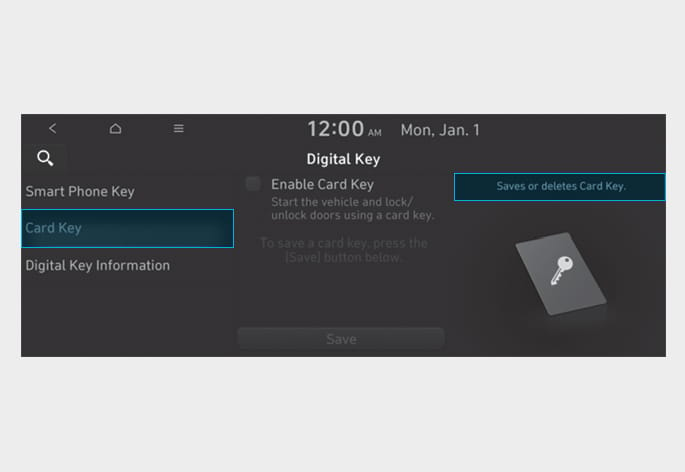
From the infotainment screen menu, go to Setup > Vehicle > Digital Key > Card Key then select the Save from submenu.
The Save button will be disabled if the digital key (Card key) is already saved.
Please refer to “Digital Key Delete” in this manual and follow the digital key delete procedure in your car before Digital key save.
-
Place the NFC card key onto the interior authentication pad (wireless charger). The saving process will begin automatically.
-
If the key is enrolled, the message will be displayed on the infotainment screen or cluster display.
-
Once the card key registration mode is activated, the process should be completed within 5 minutes. After then, you should reactivate once again for registration.
-
For the digital key(card key) saving, the smart key(fob) must be exist inside of vehicle.
-
Once a Card key is registered, it cannot be reuse onto another vehicle.
Digital key (Card key) deletion
You should have the smart key to delete the digital key (card key) so please carry around the key.
-
Get on the vehicle with the smart key.
-
Delete the NFC card key on the User’s Settings menu after turning on the vehicle.
ONE1051273N
From the infotainment screen menu, go to Setup > Vehicle > Digital Key > Card Key then select the Delete from submenu.
If there is no saved digital key(card key), Delete menu will not be activated.
-
To delete the saved digital key (card key), the smart key must be exist inside the vehicle.
-
The deleted digital key (card key) can be re-registered before registering a new digital key (card key).
-
If you try to register a new digital key (card key), the previously registered digital key (card key) cannot be used again.
NFC door lock/unlock
ONE1051008
- : Door handle authentication pad
- : NFC Antenna of the card key
You should contact digital key (card key) to door handle authentication pad (1, marked position near by the lock button) of driver’s (or front passenger’s) outside door for 2 seconds to lock or unlock the doors. If the Two Press Unlock feature is applied (press twice for unlocking), driver’s seat door will be unlocked by contacting the digital key (card key). In this state, if you contact one more time within 4 seconds, all the doors unlock.
Inoperable condition
If you do not contact the digital key (card key) to the center of the door handle authentication pad accurately., it may not work. In addition, if you overlap and use the key with NFC-enabled cards such as transportation card or credit card, it does not work.
Note that if you try to lock your vehicle with digital key (card key) in following cases, the doors will not be locked and chime will sound for 3 seconds.
-
The Smart Key is in the vehicle.
-
The Start/Stop button is in ACC or ON position.
-
Any of the doors, hood and liftgate are open
After unlock the door or start up the vehicle with digital key, even though the driver tries to lock the doors by the central door lock switch, the door lock will be once locked and immediately released at the moment of door closed.
Start-up with Card key
After placing your registered card key onto the interior authentication pad (wireless charger), step on the brake and press the Start/Stop button.
For more information, refer to the "Start/Stop button" in chapter 6.
-
The digital key (card key) may not work under the following conditions:
-
The digital key (card key) is not placed on the door handle authentication pad or vehicle authentication pad (wireless charging pad) correctly.
-
The digital key (card key) is near NFC-enabled cards such as credit cards or smart phones.
If the digital key (card key) does not work, try again after moving the digital key (card key) away from the door handle authentication pad (more than 4 in. (0.1 m)).
-
-
The digital key (card key) can be damaged by impacts. If the digital key (card key) is damaged, replace the digital key (card key) with a new one and register it again.
-
Long-time exposure to high temperature may cause the digital key (card key) to malfunction. Be careful not to expose the digital key (card key) to direct sunlight or high temperature.
-
Leaving the digital key (card key) on the in-vehicle authentication pad (wireless charging pad) while driving may cause the digital key (card key) to malfunction. Remove the digital key (card key) from the in-vehicle authentication pad (wireless charging pad) after starting the vehicle.
-
Remove the digital key (card key) from the smartphone before charging the smartphone. If the digital key (card key) is placed between the smartphone and the in-vehicle authentication pad (wireless charging pad) while the smartphone is being charged, the digital key (card key) may malfunction. For example, when charging smartphone while the digital key (card key) is attached to the back of the smartphone case.
Digital key application/cancellation
If you do not want to use the digital key (smartphone and card key), you can disable the function temporarily. You should have the smart key when you change the settings.
From the infotainment screen menu, go to Setup > Vehicle > Digital Key > Enable Digital Keys (deselect)
For the digital key disable, the smart key must be exist inside the car. For the digital key enable, the smart key is not needed.
If you uncheck Enable digital keys, it is impossible to lock or unlock the doors or start up the vehicle with digital keys such as smartphone and card key. If you check Enable digital keys again, the registered digital keys(smartphone and card key) are available. Even though you stop the digital key function, the registered keys (smartphone and card key) are not deleted.
Connect the registered digital key with personalized profile. Then in case you lock or unlock the door with the digital key NFC function or unlock the door remotely by digital key application Bluetooth connection, the vehicle will play the personalized user profile settings. Profile connection and personalization are available for Driver 1 and Driver 2.
Profile link/unlinked
Profile link
-
Select Setup > User Profile > Profile Settings > Link Digital Key (Smartphone) on the infotainment system menu.
-
Unlock and place your smartphone on the wireless charger according to a message and it automatically starts to interwork.
-
It begins the profile link with a message.
-
If you select Link, the registered phone number’s digital key and the user’s profile are linked.
-
The interconnection process is completed with a message.
The infotainment system may change after software updates. For more information, refer to the user's manual provided in the infotainment system and the quick reference guide.
Profile unlink
-
Select Digital Key information on infotainment Vehicle Settings menu. It is possible to unlink only if the profile is interconnected.
-
Profile unlink is completed with a message.
If you connect both Driver 1 and Driver 2 with a single smartphone, the smartphone digital key always works as Driver 1.
If you unlink the Driver 1, personalization function will operate as Driver 2.
PRECAUTION for vehicle profile link and unlink
When you link or unlink the profile of digital key, you should be careful of the following.
-
Profile link is possible to use with the digital key. (Infotainment Vehicle Settings Mode > Digital Key > Enable Digital Keys)
-
Profile link information remains even when you set the digital key function disable.
-
Only the smart phone with digital key app enables you to link your profile. (Impossible to link with NFC card)
-
Profile link works only when the smart phone and the digital key are registered to the vehicle. The smart phone with another vehicle’s digital key cannot link profile.
-
If you remove the smart phone from the wireless charger before completing the profile link, it does not work.
-
To unlink the profile, the smart phone does not need to be on the wireless charger.
Vehicle personalization operation
The personalization function linked with digital key works as following conditions:
-
Contact the driver’s door handle with the profile linked smart phone to lock or unlock the doors (Personalization does not operate when locking or unlocking the front passenger door.)
-
Remote door unlock with the profile linked smartphone digital key app.
The profile linked with digital key can be changed manually in the infotainment system setup screen.
Precaution for digital key profile link and unlink
Profile operation according to door lock/unlock system is as follows.
|
Item |
Personalization Operation |
|
Initial value |
Guest |
|
Profile linked smart phone key |
Linked profile |
|
Profile unlinked smart phone key |
Recently activated profile |
|
NFC card key |
|
|
Smart key |
-
The personalization function using the digital key can be operated after linking the digital key on the infotainment system profile menu.
-
You should use the personalization function during stopping your vehicle safely.
Vehicle personalization with digital key
The available personalization function in the vehicle is as follows.
|
System |
Personalization Item |
|
|
USM |
HUD |
Display mode, Display control, AR matching adjustment, Content selection |
|
Lamp |
Blink number of one-touch signal lamps |
|
|
Cluster |
Information display on the instrument cluster, Voice volume, Welcome sound, Theme selection |
|
|
Seat/Mirror |
- |
|
|
Door |
Automatic door lock/unlock, Two Press Unlock |
|
|
Air conditioning |
Temperature unit, shut off outside air (interlocked with washer fluid), Automatic ventilation, Auto defogging on/off |
|
|
Convenience |
Wireless charging system on/off |
|
|
NFC |
Digital key on/off, Smartphone Key Paring/Deletion, Card key Save/Delete |
|
|
AVN |
Navigation |
Preferred volume of the navigation system, Recent destination |
|
User preset |
Radio preset |
|
|
Phone connectivity |
Bluetooth preferential connect CarPlay/Android Auto/MirrorLink On/Off |
|
|
Air conditioning |
Operating condition |
Latest operation setup of the following functions:Temperature, AUTO, air flow direction, air volume, air conditioner, air intake control, SYNC, Front windshield defroster, OFF |
|
Driving |
Smart mode |
- |
The infotainment system may change after software updates. For more information, refer to the user's manual provided in the infotainment system and the quick reference guide.
If you leave the digital key after locking or unlocking the doors or starting up the vehicle with the smart key, the doors can be locked by the central door lock. Please carry around the digital key all the time.