Digital Side Mirror (DSM)
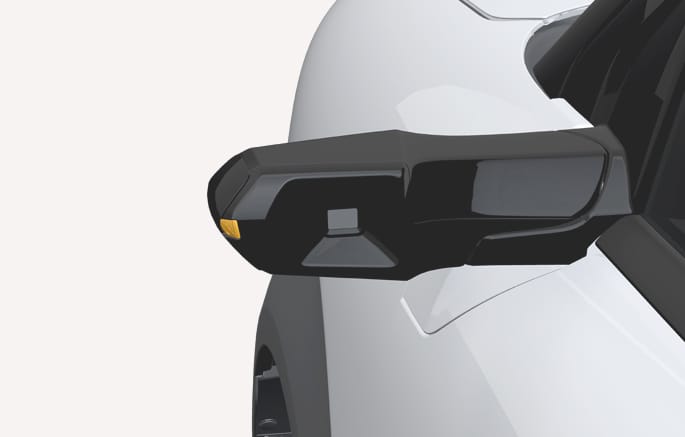
2C_DSMcamera
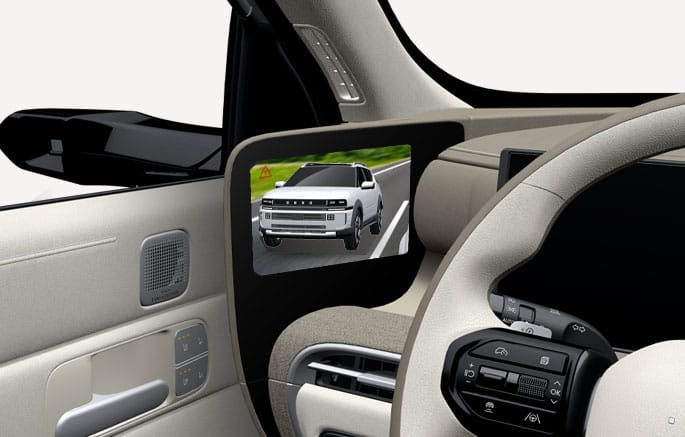
2C_DSMcamera_2
The digital side mirrors are a replacement for the outside rearview mirrors and help with changing lanes by displaying the rear view image on the monitors inside the vehicle.
-
The DSM monitor brightness is linked to the instrument cluster's brightness.
-
The DSM camera angle is linked to the integrated memory system (IMS).
Do not adjust or fold the DSM cameras while driving. It distracts you from driving and may cause an accident.
-
The digital side mirrors show the rear view as an image, so the view may differ from the actual view and you cannot see the field of view out of the set position. Be careful while driving.
-
The display of the DSM monitor may seem blur due to strong light sources such as direct sunlight and may temporarily be obscured by light smear or vehicle headlights. Use the inside rearview mirror, etc. to see around the vehicle.
-
In certain situations, an image error may occur, such as the DSM monitor being out of focus or displaying incorrect colors. This makes it difficult to clearly see moving objects and causes your eyes to feel tired due to watching the monitor for a long time.
-
Always pay attention to the condition of your vehicle while driving. If you think there is an error in the vehicle, immediately park in a safe place and contact an authorized HYUNDAI dealer.
-
If the DSM monitor display is not clear, the camera lenses may be contaminated or foggy. Wipe the DSM camera lenses or activate the defroster to remove fog or foreign substances before driving. Be careful not to damage the lens while wiping, and be careful not to get burned by the operation of the defroster.
Turning on the DSM monitors
When you unlock the doors or start the vehicle remotely, the digital side mirrors will prepare for operation. When you open a door or unfold the DSM cameras, the DSM monitors will turn on.
Turning off the DSM monitors
-
When you stop the vehicle and lock the doors, or seven minutes after stopping the vehicle, the DSM monitors will automatically turn off and the DSM cameras will fold.
-
If you fold the DSM cameras while the vehicle is on, the DSM monitors will display a black screen and notify you that the digital side mirrors are folded.
-
The DSM monitors are automatically turned on or off based on various conditions, such as the vehicle and door status.
The warnings and indicators displayed on the DSM monitors are as follows.
|
|
Driving assistance warning
|
|
|
Wide view mode switch indicator |
|
|
Internal malfunction warning light |
When you turn on the turn signal indicator to change lanes, the rearview screen and the lane change guidelines will be displayed on the DSM monitors.
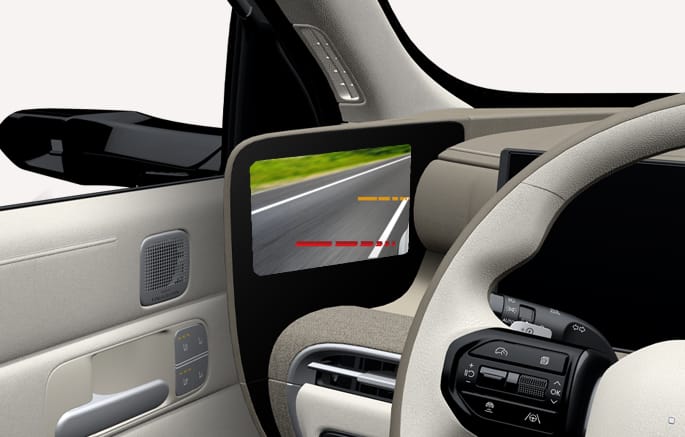
2C_DSMGuideLineDisplay
-
Red: 3 m (118 in.) away from the rear of the vehicle
-
Orange: 12 m (472 in.) away from the rear of the vehicle
Setting the feature
On the infotainment system, select Setup > Vehicle > Convenience > Lane change assistance guideline.
The infotainment system may change after software updates. For more information, refer to the infotainment system manual.
Guideline display conditions
The turn signal indicator is turned on.
Guideline removal conditions
-
The vehicle is turned off.
-
The turn signal indicator is turned off.
-
The hazard warning light is turned on.
-
The lane change guidelines may differ from the actual situation depending on your vehicle and the road conditions.
-
To change lanes, turn on the turn signal indicator in advance and secure enough space in the lane before entering.
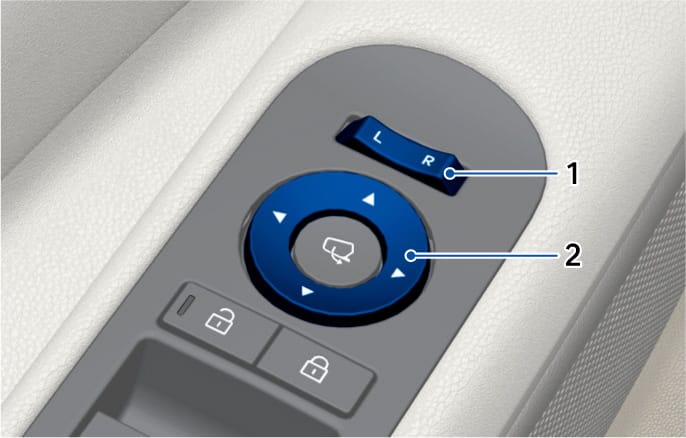
2C_AdjustSideViewMirror
- Outside rearview mirror control selection button
- Outside rearview mirror control switch
-
With Start/Stop button in the POWER ON or DRIVE READY position, move the DSM camera selection lever to select L (Left) or R (Right).
-
Use the DSM camera adjustment switch to adjust the camera angle.
Do not adjust the DSM cameras manually. Adjusting the DSM cameras manually may damage the related parts.
-
You can control the DSM cameras when the Start/Stop button is in the OFF position, but excessive control may discharge the vehicle's battery.
-
When cleaning the DSM camera lenses or the DSM monitors, do not spray the cleaner directly. Instead, coat it on a soft towel or cloth. If you spray the cleaner directly on the lenses or monitors, the cleaner may get inside, causing a malfunction.
-
Do not scrape ice off the surface of the DSM camera lenses. Doing so may damage the lenses.
-
Do not use warm or hot water to remove snow or ice from the camera lenses. Doing so may cause cracks in the lenses.
-
If the DSM camera is jammed with ice, do not adjust the camera by force. Use an approved de-icer spray, or move the vehicle to a warm place and allow the ice to melt.
DSM camera folding button
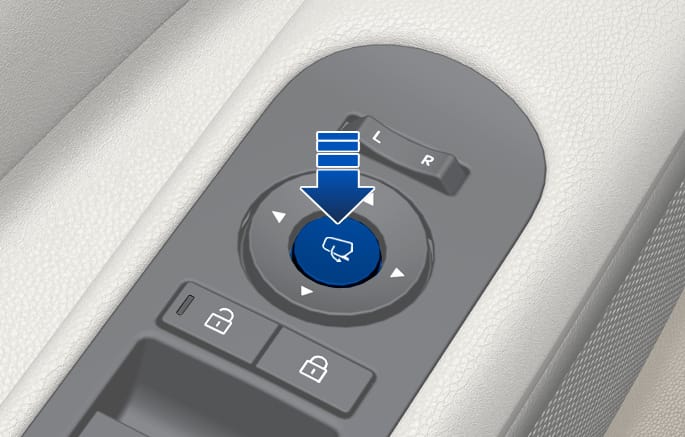
2C_FoldSideViewMirror
To fold or unfold the DSM cameras, press the DSM camera folding button.
Enable on door unlock (infotainment system)
If you select Setup > Vehicle > Lights > Welcome Mirror/Lights > On door unlock on the infotainment system,
-
The DSM cameras will fold when locking the doors.
-
By pressing the door lock button (
Ď ) on the smart key -
By touching the door lock/unlock sensor on the front outside door handles (the engraved part)
-
-
The DSM cameras will unfold when unlocking the doors.
-
By pressing the door unlock button on the smart key
-
By touching the door lock/unlock sensor on the front outside door handles (the engraved part)
When On door unlock is selected, you can select On driver approach. If you select On driver approach, the DSM cameras will unfold when you approach the vehicle with the smart key.
-
-
For your safety, the DSM cameras cannot be folded when driving at a speed of 15 km/h (9 mph) or faster.
-
The infotainment system may change after software updates. For more information, refer to the infotainment system manual.
-
You can control the DSM cameras when the Start/Stop button is in the OFF position, but excessive control may discharge the vehicle's battery.
-
Always use the DSM camera folding button to fold or unfold the DSM cameras. Folding or unfolding the cameras manually may damage the motor. Also, vibrations or noises may be emitted from the DSM cameras while driving, indicating that the gears are not engaged correctly. In this case, engage the gears by folding and unfolding the camera again using the folding button.
-
When cleaning the DSM camera lenses or the DSM monitors, do not spray the cleaner directly. Instead, coat it on a soft towel or cloth. If you spray the cleaner directly on the lenses or monitors, the cleaner may get inside, causing a malfunction.
-
Do not scrape ice off the surface of the DSM camera lenses. Doing so may damage the lenses.
-
Do not use warm or hot water to remove snow or ice from the camera lenses. Doing so may cause cracks in the lenses.
-
If the DSM camera is jammed with ice, do not adjust the camera by force. Use an approved de-icer spray, or move the vehicle to a warm place and allow the ice to melt.
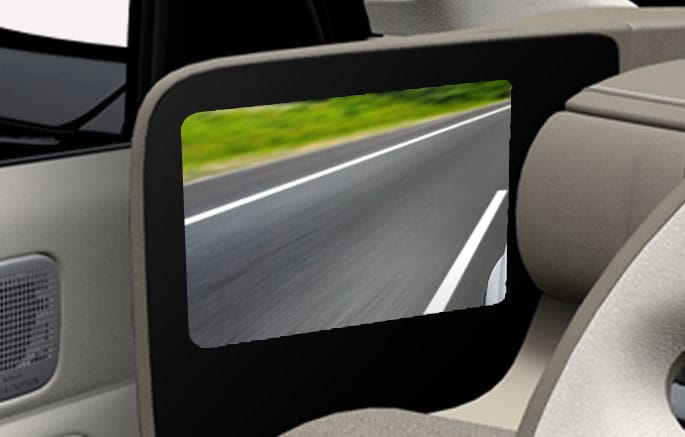
2C_DSMChangingLanes
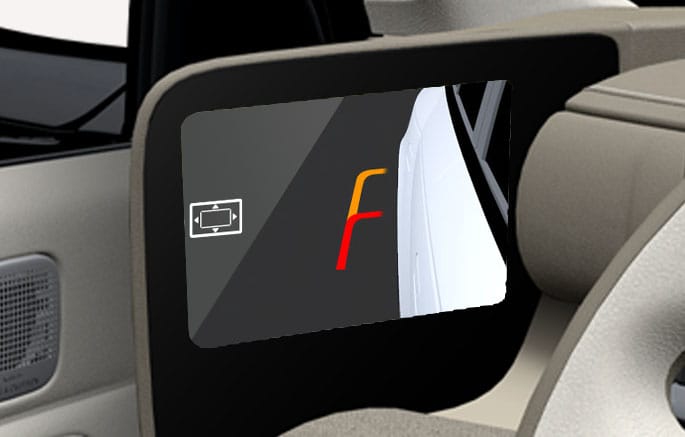
2C_DSMReverseWideView
-
The guidelines displayed on the DSM monitors while backing up indicate the following points.
-
0.3 m (12 in.) away from the side of the vehicle
-
0.5 m (19 in.) and 1 m (39 in.) away from the rear of the vehicle
-
-
The wide view will be deactivated when you shift to N (Neutral) or D (Drive) and drive at a speed of 10 km/h (6 mph) or faster.
-
The wide view appears only when the wide view switch feature is activated while backing up. In P (Park), N (Neutral), and D (Drive), the DSM monitors display the original view.
Setting wide view operation
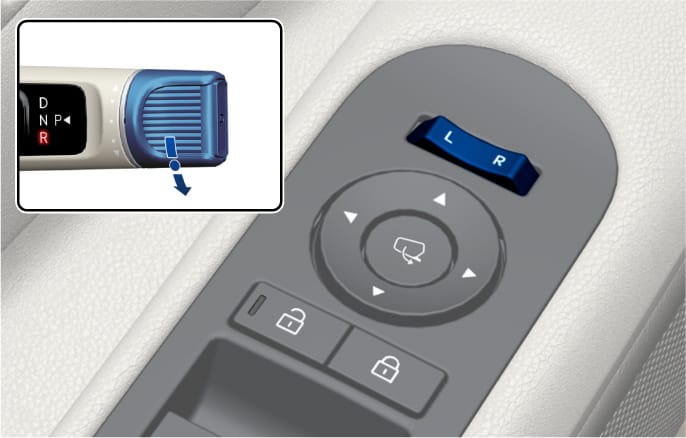
2C_AutoReversetSideViewMirror_2
Use the DSM camera selection lever to select L (Left) or R (Right).
-
When you shift to R (Reverse), the DSM monitors will display wide view.
-
If you put the DSM camera selection lever in the center, the DSM monitors will not display wide view.
If there is an error in the digital side mirror, the DSM monitors will not display the rear view and a warning message informing you to check the DSM system will appear on the instrument cluster. If this occurs, check the surroundings using the inside rearview mirror and immediately park your vehicle at a safe place, and contact an authorized HYUNDAI dealer.
With the Start/Stop button in the DRIVE READY position, on the infotainment system, select Setup > Display > Screen Brightness to change the brightness.
-
Automatic Brightness or Manual Brightness adjustment
The infotainment system may change after software updates. For more information, refer to the infotainment system manual.