Wireless smart phone charging system
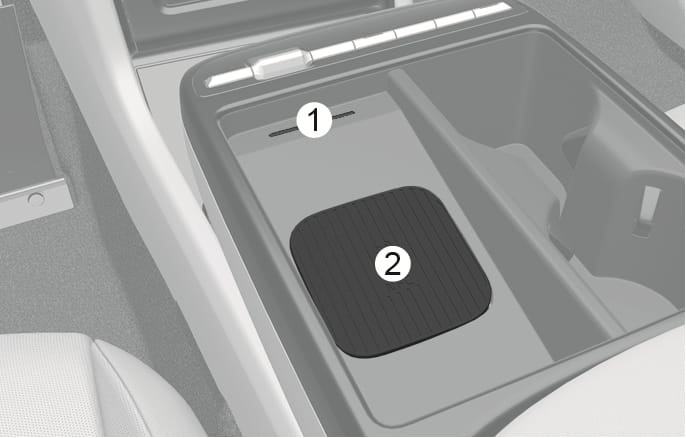
2C_WirelessSmartPhoneChargingSystem
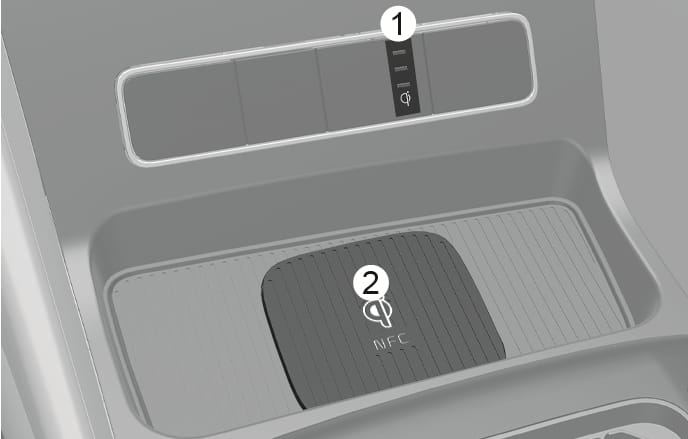
2C_WirelessSmartPhoneChargingSystem_2
- Indicator light
- Charging pad
On certain models, the vehicle comes equipped with a wireless smart phone charger.
The system is available when all doors are closed, and when the Engine Start/ Stop button is in the ON (or START) position.
The wireless smartphone charging system charges only the Qi-enabled smartphones (
The wireless charging process starts when you put a Qi-enabled smartphone on the wireless charging with the screen facing up.
-
The wireless smartphone charger is available when all doors are closed, and when the Engine Start/Stop button is in the ON or START position.
-
Turn on the wireless charging function from the Settings menu in the infotainment system.
-
Select: Settings > Vehicle > Convenience > Wireless charging system for mobile devices
-
-
Place the smartphone on the center of the wireless charging pad. The indicator light is orange when the smartphone is charging and turns blue when phone charging is complete.
-
Remove other items, including the smart key from the wireless charging pad.
-
For flip type smartphones, when using wireless charging, place the smartphone folded with the device's back placed on the center of the wireless charging unit.
If your smartphone is not charging:
-
Move the smartphone on the charging pad.
-
Make sure the indicator light is orange.
The indicator light blinks orange for 10 seconds if there is a malfunction in the wireless charging system.
The system warns you with a message on the cluster display if the smartphone is still on the wireless charging pad after the vehicle is turned OFF and the front door is opened.
-
The wireless smartphone charging system may not support certain smartphones, that do not meet for the Qi specification (
þ ). -
When placing your smartphone on the charging pad, position the phone in the middle of the mat for optimal charging performance. If your smartphone is off to the side, the charging rate may be less and in some cases the smartphone may experience higher heat conduction.
-
Wireless charging may stop temporarily when the smart key is used, either when starting the vehicle or locking/unlocking the doors, etc.
-
When charging certain smartphones, the charging indicator may not change to blue when the smartphone is fully charged.
-
The wireless charging process may temporarily stop, when temperature abnormally increases inside the wireless smartphone charging system. The wireless charging process does not restart, until the temperature falls.
-
The wireless charging process may temporarily stop when there is any metallic item, such as a coin, between the wireless smartphone charging system and smartphone.
-
For some manufacturer's smart phones, the system may not warn you even though the smart phone is left on the wireless charging unit. This is due to the particular characteristic of the smart phone and not a malfunction of the wireless charging.
-
When using a smartphone application, such as Android Auto, while charging, the charging process may be delayed or interrupted due to the smartphone overheating. This issue is not related to the wireless charging system but rather caused by the smartphone's self-heating. Therefore, disconnect the smartphone from the charging pad.
-
If the smartphone has a thick case, it may not charge.
-
Some magnetic items such as credit cards, phone cards, or transit cards may be damaged if left with the smartphone during the charging process.
-
If the smartphone is not completely contacting the charging pad, wireless charging may not operate properly.
-
If the Engine Start/Stop button is in the OFF position, the charging also stops.
-
When any smartphone without a wireless charging function or a metallic object is placed on the charging pad, a small noise may sound. This small sound because the vehicle discerns compatibility of the object placed on the charging pad. It does not affect your vehicle or the smartphone.
-
Some smartphones may not be able to charge depending on the internal structure of the smartphone. If this occurs, try charging the smartphone by moving it to the left or right side of the wireless charging pad. However, for some fold-able smartphones that have magnets inside the smartphone, try charging the smartphone while holding it close to the left side of the wireless charging pad.
-
Wireless charging speed varies depending on the wireless charging policy and product specifications set by each smartphone manufacturer. You can check your smartphone's maximum wireless charging speed in the user manual provided by the smartphone manufacturer.
-
It is normal for your smartphone to heat up during the charging process. When using Android Auto or Apple CarPlay, your smartphone may heat up more quickly, and the charging process may be slower.
Some magnetic items like credit cards, phone cards or rail tickets may be damaged if left with the smartphone during the charging process.