Rear View Monitor operation
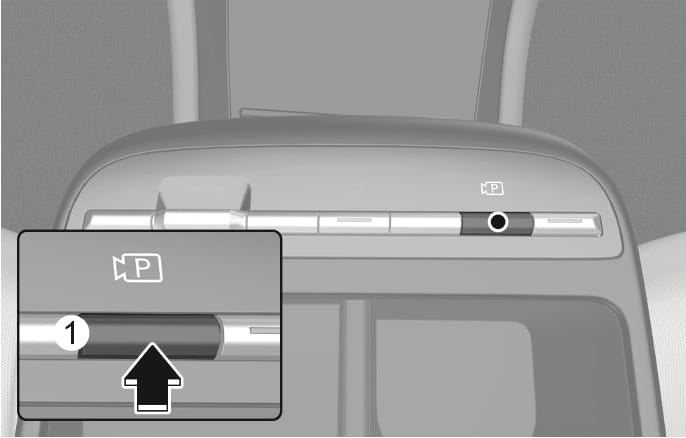
2C_ParkingViewButton
Press the Parking/View button (1) while the gear is in P (Park), D (Drive) or N (Neutral) to turn on the Rear View Monitor.
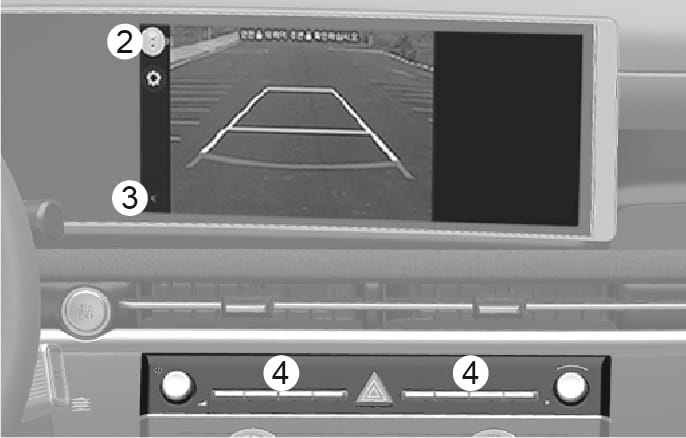
2C_RearViewInfo
Operating conditions
-
The gear is shifted to R (Reverse).
-
The Parking/View button (1) is pressed while the gear is in P (Park), N (Neutral) or D (Drive), and vehicle speed is 10 km/h (6 mph) or less.
Touch the Change View button (2) to select rear view or rear top view.
Off conditions
-
The gear is shifted to P (Park).
-
The Parking/View button (1) or the Infotainment system screen button (4) is Pressed.
-
The gear is in N (Neutral) or D (Drive) and the vehicle speed is above 10 km/h (6 mph).
-
The previous (
ŷ ) button (3) is selected on the rear view menu.
When the gear is in R (Reverse), the rear view does not turn off.
The rear view will maintain showing on the screen to help you when parking.
Operating conditions
The gear is shifted from R (Reverse) to N (Neutral) or D (Drive), and vehicle speed is 10 km/h (6 mph) or less.
Off conditions
-
When vehicle speed is above 10 km/h (6 mph), the rear view will turn off.
-
Shift the gear to P (Park), the rear view will turn off.
-
Press the Parking/View button (1), the rear view will turn off.
2C_RearTopView
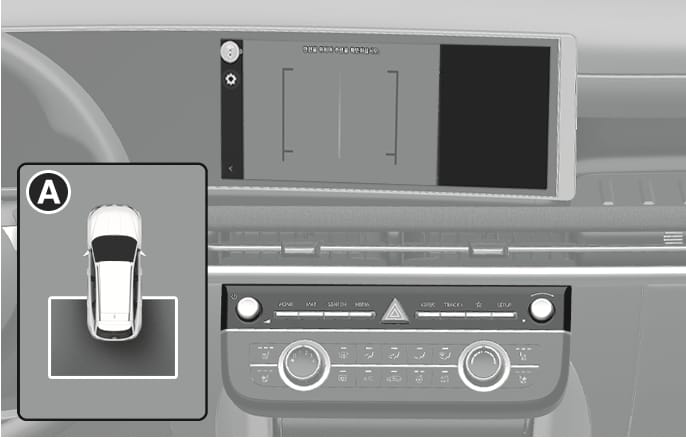
Select the rear top view mode [A] from the view buttons (2).
The top view appears on the screen and the distance from the vehicle appears in the back of your vehicle.
The driver is able to check the rear view on the screen while driving, it is to assist with backing up.
Operating conditions
-
The Parking/View button (1) is pressed, while the gear is in P (Park), N (Neutral) or D (Drive), and the vehicle speed is above 10 km/h (6 mph)
Off conditions
-
The gear is shifted to P (Park).
-
The Parking/View button (1) is pressed again.
-
One of the infotainment system screen button (4) is selected.
-
The previous (
ŷ ) button (3) is selected on the rear view menu.
When operating
If the gear is shifted to R (Reverse), when rear view while driving appears on the screen, the screen will change to rear view.
-
The rear view does not turn off regardless of the mode when the gear is in R (Reverse).
-
When the rear view is activated, the latest used view mode is displayed.
-
The rear parking guidelines are displayed in rear view and rear top view mode. (When selected in Settings > Vehicle > Driver assistance > Parking safety > Camera settings > Display contents > Rear view reference lines from the Settings menu in the infotainment system) However, rear parking guidelines are not displayed in the rear view while driving.
-
The rear view while driving does not turn off even when the vehicle speed is lower than 10 km/h (6 mph) once it is on.
-
When the rear view while driving is on, the rear top view will be deactivated.