Fingerprint authentication system settings
You can set or delete a fingerprint through the infotainment system.
Follow the following procedure.
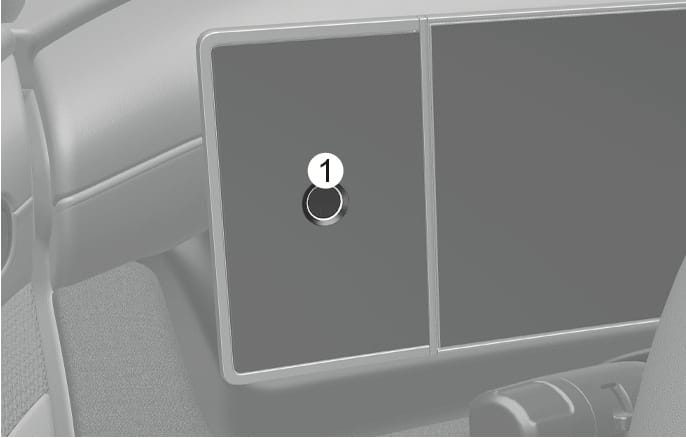
2C_FingerprintAuthenticationSensor
- Fingerprint sensor
-
Have both of your smart keys with you in the vehicle.
-
Turn on the engine and select Settings > User profile > Driver 1 > Fingerprint Identification from the infotainment system.
-
After entering the profile password, select Set/Delete Fingerprint > Set.
-
Place your finger that you wish to register on the fingerprint sensor according to the instruction.
-
Following the instructions, place several parts of your fingerprint until the scanning process is complete.
When scanning is complete, the 'Saving fingerprint….' appears and the fingerprint registering process is proceeded.
-
Remove all substances including protection film on the fingerprint sensor, and then register your fingerprint.
-
The fingerprint registering process is canceled when the following condition occurs:
-
The infotainment system screen is altered
-
The Engine Start/Stop button turns on or off
-
The gear is shifted, and the vehicle is driven
-
-
Have one of your smart key with you in the vehicle.
-
Turn on the and select Settings > User profile > Driver 1 > Fingerprint Identification from the infotainment system.
-
After entering the profile password, select Set/Delete Fingerprint > Delete.
-
Delete the registered fingerprint according to the message 'Delete all Driver 1 fingerprints?'.
Do not participate in duplicating your fingerprint with anyone.